

Connect BlueJeans Events to HTML Form with LeadsBridge

In this article, you'll learn how to set up the bridge and connect BlueJeans Events to My CRM Example using LeadsBridge.
How to set up your bridge step-by-step tutorial
Before you start
- Head over to the left sidebar and click on the Create new Bridge green button
- You'll be taken to the first step of the bridge creation
Step 1: Choose the apps you want to connect
- Choose BlueJeans Events as the source for your bridge
- Choose HTML Form as the destination for your bridge
- Click on the Continue button
- At this point you can choose a name for your bridge (this will only be visible inside LeadsBridge and you can also edit it later)
Step 2: Configure your BlueJeans Events with HTML Form
Step 2.A: Setup your BlueJeans Events integration
- Click on Connect BlueJeans Events
- Click on Create new integration to connect your BlueJeans Events (or select an existing one from the dropdown if you already connected it)
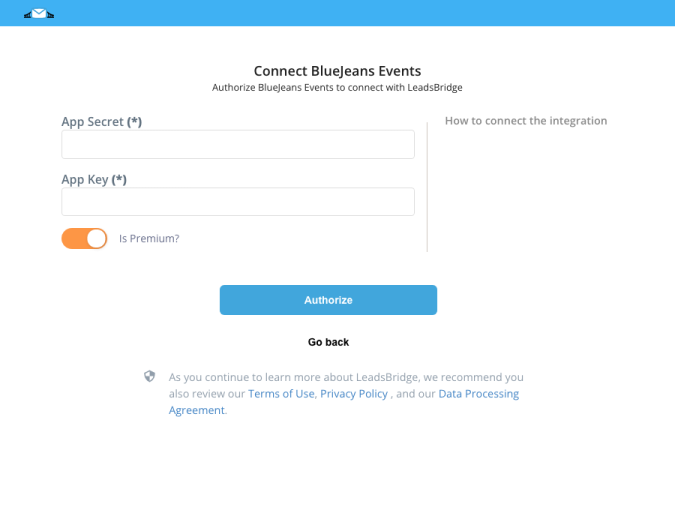
- A popup wil be opened where you can authorize the BlueJeans Events integration
- Fill App Key, App Secret field to connect BlueJeans Events with LeadsBridge
- Click on the Authorize button
- You can choose a name for this BlueJeans Events and LeadsBridge integration (you can also edit it later)
- Once done, click on Continue button and you will get back to the bridge experience where you could choose additional integration settings
- Now that your BlueJeans Events is connected, you can continue with the set-up of your bridge
Step 2.B: Configuration details for BlueJeans Events
How to get App Key, App Secret
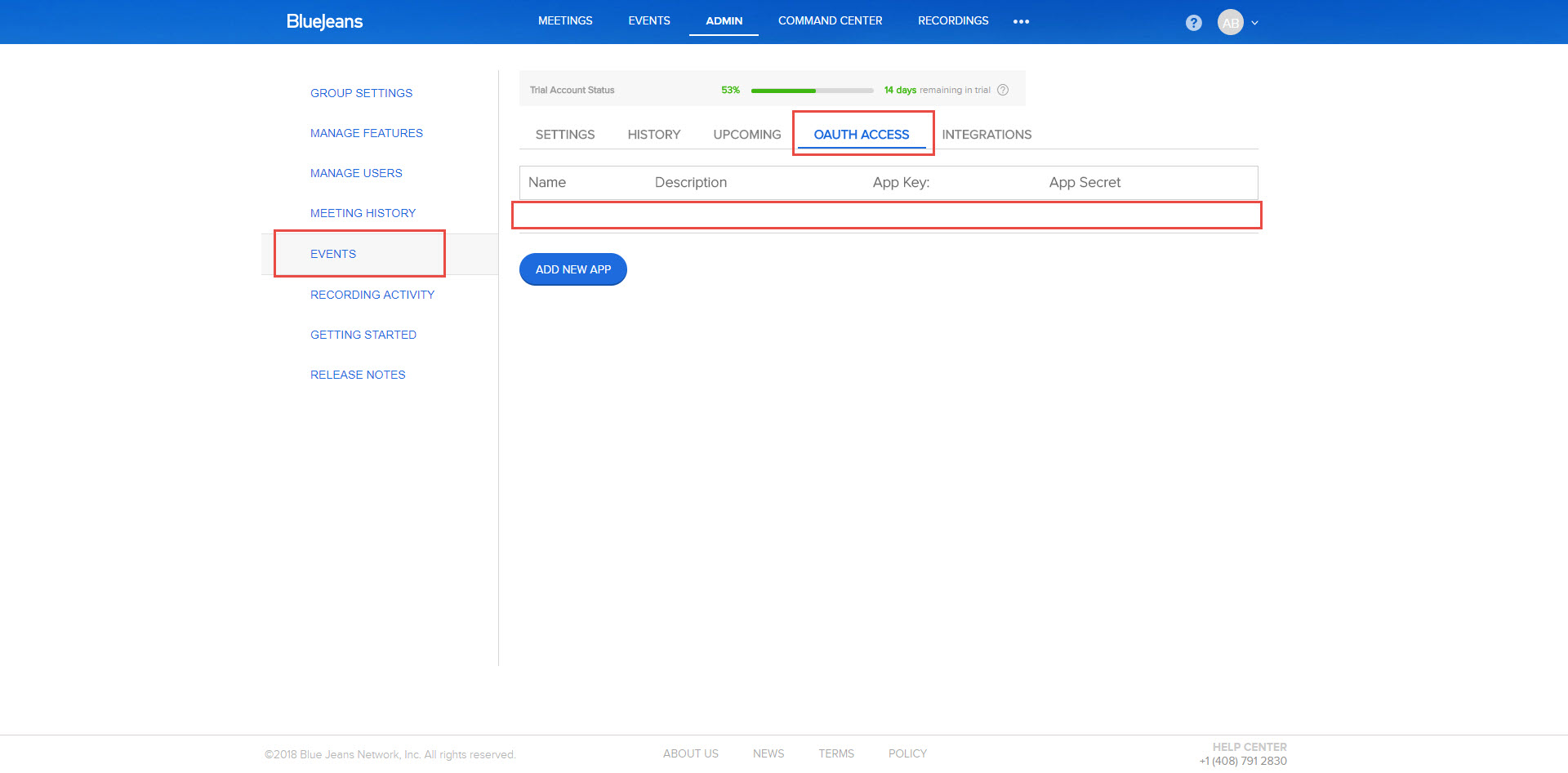
- Go under the Admin section of your BlueJeans account
- Click on the Events part
- Select OAUTH ACCESS
- Click on Add New App
- Once done, copie the Api Key and App secret
- Click on the Events part
- Select OAUTH ACCESS
- Click on Add New App
- Once done, copie the Api Key and App secret
Other Info
Please note that if you have an Enterprise account you need set up the toggle on YES
Step 2.C: Setup your HTML Form integration
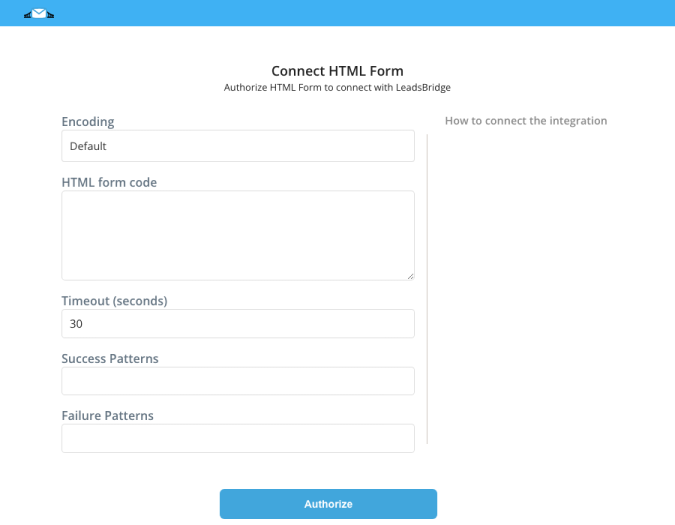
- Click on Connect HTML Form
- Click on Create new integration to connect your HTML Form (or select an existing one from the dropdown if you already connected it)
- A popup wil be opened where you can authorize the HTML Form integration
- Fill HTML form code field to connect HTML Form with LeadsBridge
- Click on the Authorize button
- You can choose a name for this HTML Form and LeadsBridge integration (you can also edit it later)
- Once done, click on Continue button and you will get back to the bridge experience where you could choose additional integration settings
- Now that your HTML Form is connected, you can continue with the set-up of your bridge
Step 2.D: Configuration details for HTML Form
How to get HTML form code
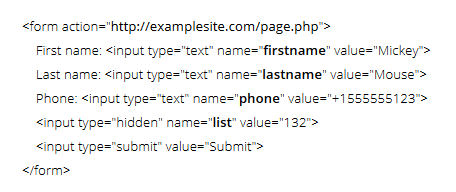
If your CRM has the feature called Web-To-Form or HTML form, to embed HTML code inside a web page, you only need to copy and paste the HTML code into LeadsBridge as a new custom HTML form integration.
An HTML form code is something that typically starts with <form> and ends with </form>. Pay attention that the attribute “action” should be specified inside the tag form.
Learn more about HTML forms here: ( Learn more)
An HTML form code is something that typically starts with <form> and ends with </form>. Pay attention that the attribute “action” should be specified inside the tag form.
Learn more about HTML forms here: ( Learn more)
Other Info
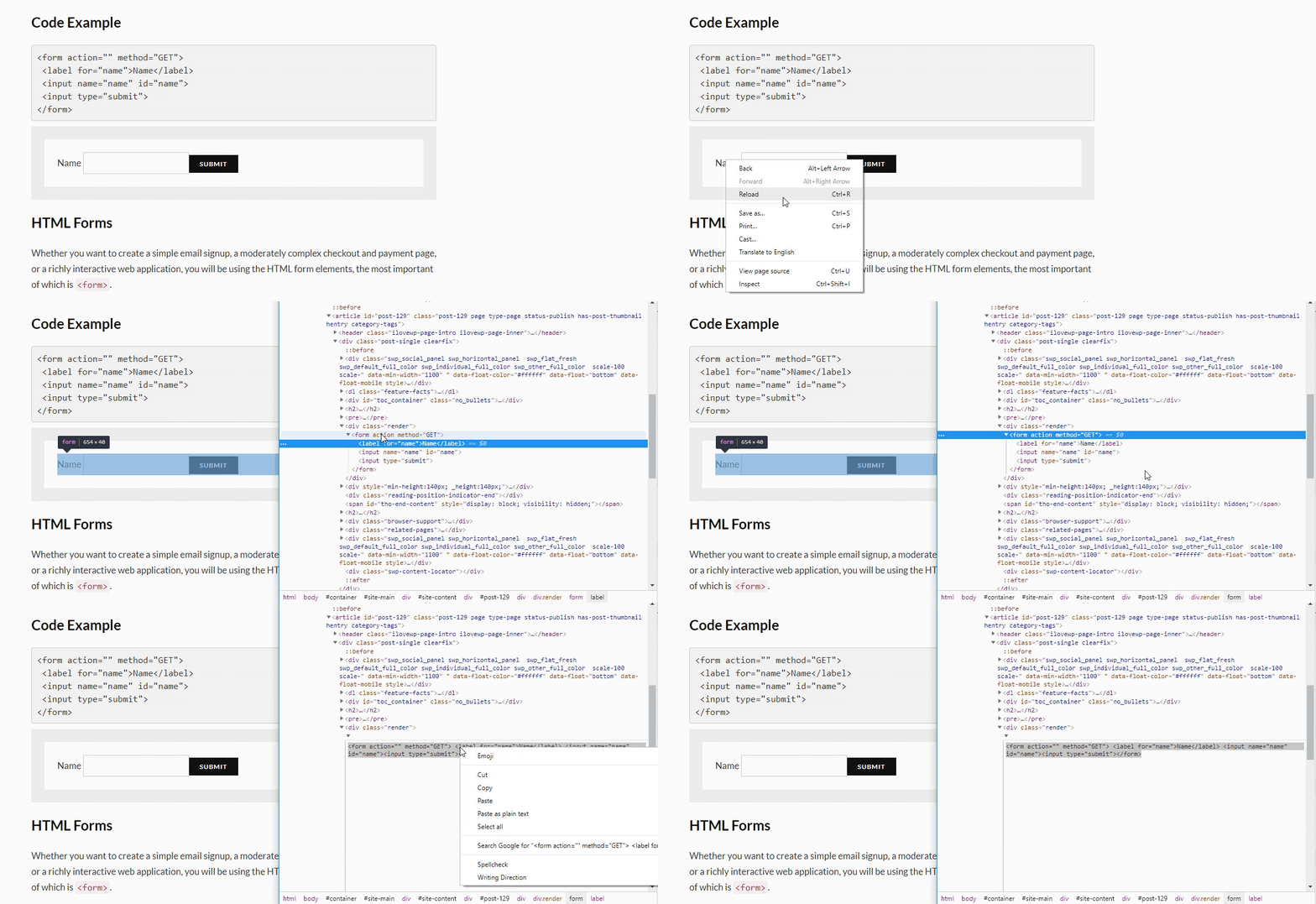
If you don't have the form code but you have an opt-in form online, you may copy its code by following these steps:
- Open your opt-in form page.
- Hover the form.
- Right-click to open the contextual menu.
- Click on "Inspect" the open the dev tool.
- Position at the form action line.
- Right-click and "Edit as HTML".
- Copy the form code.
"Encoding", "Timeout", "Success Patterns" and "Failure Patterns" can be left with their default values, you don't need to set them in most cases. If you'd like to know more, please read the common questions below.
Step 2.E: Email Receipt (Optional)
You may choose to receive an email receipt for each incoming lead.
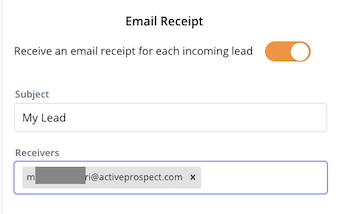
- Type the address(es) where you'd like to receive the receipt
- You may also modify the Subject line of the email
Step 3: Fields Mapping
Here you'll be able to map your BlueJeans Events information with your HTML Form fields.
- You will have HTML Form fields on the left. Match the information you wish to pass align from BlueJeans Events
- Based on HTML Form functionality, some fields might be required; if this is the case, you can identify those fields with a * (star), so be sure to map all them
- You can also use the functions to customize information like reformatting dates and times or modifying text, phone numbers and so on.
- You may leave blank the box of a field's information you don't want to send through. Clicking on the Show unmapped fields button you will have visibility on all the available fields still not mapped
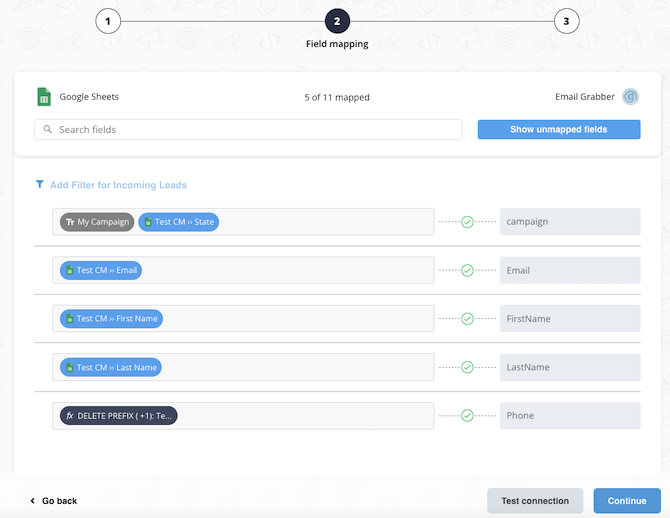
Step 3.A: Leads Filter (Optional)
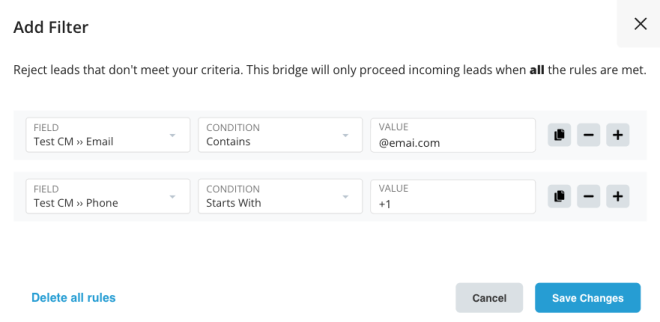
If you'd like you could add a filter for incoming leads. This filter will sync only leads that meet the configured conditions
- Click on the link Add Filter for Incoming Leads on the top left
- A popup wil be opened where you can configure the filter
- You can define a series of condition to filter the leads. The lead will be synced only when all the conditions will be met
- Once finished, click the Save Changes button to switch back to the Fields Mapping to continue with the bridge configuration
Step 3.B Test Connection (Optional)
Once you’ve mapped all the fields that you need, if available, you can run a test of your connection by clicking on the Test Connection button.

Step 4: Save and Publish
- Click on the Save and publish button
Congratulations! Now your bridge is up and running
Do you need help?
Here some additional resources:
- BlueJeans Events documentation page and common questions
- HTML Form documentation page and common questions
- LeadsBridge KNOWLEDGE BASE
- Contact support from your account clicking on the top right Support button


