
TL;DR
- Facebook Marketplace helps businesses sell physical products locally or via shipping.
- Listings are usually free, but shipped orders have Meta selling fees.
- Sellers must follow Meta’s product, category, and eligibility rules.
- Good photos, clear descriptions, tags, and categories improve visibility.
- Marketplace ads run through Meta Ads Manager and can boost reach.
- Integrations help send Marketplace leads into CRMs and email tools.
Facebook has become a major commercial platform for marketers looking to increase brand visibility, conversions, and sales.
Do you know how to get the most out of Facebook Marketplace?
- TL;DR
- What is Facebook Marketplace?
- Who can sell on Facebook Marketplace?
- Advantages of using Facebook Marketplace for businesses
- What to sell on Facebook Marketplace
- How does Facebook Marketplace work?
- How to set up a Facebook Marketplace account
- How to list products on Facebook Marketplace
- How to add tags on Facebook Marketplace listings
- How to sell on Facebook Marketplace as a business
- How to advertise on Facebook Marketplace
- How to better use Facebook Marketplace
- How to maximize Facebook Marketplace ads for your business
- FAQs
- Final thoughts
In this guide, we’ll discuss Facebook Marketplace and all the leading tools you need to capture leads and manage your lead data in the best way possible.


What is Facebook Marketplace?
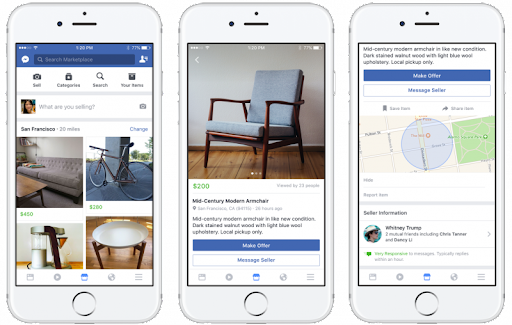
Facebook Marketplace offers a complete shop-like interface that connects users directly with the product they want to buy or sell.
With Facebook Marketplace, businesses can:
a) Display different retail items.
b) Advertise store items on the Marketplace to sell more products.
c) Show new or used items from the Facebook page shop for free.
Who can sell on Facebook Marketplace?
Facebook Marketplace is for everyone with things to sell, whether old or new. Of course, provided their products and accounts comply with Meta’s policies.
The platform is also designed for different businesses: e-commerce companies, entrepreneurs, sellers, artisans, fashion firms, real estate agencies, etc.
Availability varies by country, account age, seller eligibility, category, and whether the seller is using a personal profile, Page, Shop, or partner integration.
Its features are similar to those of the Amazon and eBay marketplaces. But here, advertisers don’t pay to list their products or services on Facebook. There is no listing fee.
Effective April 15, 2024, Facebook increased the selling fee on shipped Marketplace orders from 5% or $0.40 minimum to 10% or $0.80 minimum.
A 10% fee (min $0.80) is charged on the total sale, including shipping and tax, then deducted from your payout.
Advantages of using Facebook Marketplace for businesses
Let’s go through some of the advantages of using Facebook Marketplace.
Offers different marketing tools
Facebook Marketplace provides a unique set of tools that advertisers can use to incorporate personalization, optimize for mobile, and create impactful ad campaigns. You can also embed Facebook Marketplace ratings on websites and use them efficiently as an advertising tool for your business.
Businesses can also use marketing automation tools to create automatic replies to users’ inquiries or streamline communication based on their CRM segments. For teams managing multiple Marketplace accounts or operating across regions, using tools like NodeMaven IPv6 proxies can help maintain stable access and reduce account-related restrictions.
However, you’ll need a third-party integrator like LeadsBridge to connect the two platforms.


Facilitates one-on-one sales to prospects
It allows businesses to sell to buyers directly and communicate with them on a one-on-one basis through Facebook Messenger.
Prospective buyers can contact you directly, and you can answer them in real time. This helps you give them the needed product information before they lose interest.
Accepts versatile payment methods
For local pickup, Facebook doesn’t process payments. Buyers and sellers agree on their own payment method. For shipped orders, payments run through Marketplace Checkout.
List products for free
Creating Marketplace listings is generally free, but shipped sales may incur selling fees, and paid promotion or ads require a budget. You can list your products in minutes and start selling, which helps you streamline the conversion funnel and boost sales.
If you already have a Facebook shop, it lets you link it directly with your Marketplace and get more conversions.
For shipped Marketplace orders, payment is processed through Facebook Marketplace’s checkout flow.
What to sell on Facebook Marketplace
Wondering how to post on Facebook Marketplace as a business? Start with what is permitted and what is not!
Here are the items you cannot sell, according to Meta.
- Adult products or services
- Alcohol and tobacco products or paraphernalia
- Illegal, prescription, or recreational drugs (and drug paraphernalia)
- Weapons, ammunition, and explosives
- Live animals or animal parts
- Hazardous materials (e.g., chemicals, fireworks)
- Body parts, bodily fluids, or human remains
- Stolen, counterfeit, or recalled products
- Digital goods, subscriptions, or virtual items
- Financial instruments (e.g., currency, gift cards, credit services)
- Gambling products or promotions
- Jobs, internships, or “get-rich-quick” opportunities
- Medical devices, ingestible supplements, or healthcare claims
- Services (intangible or non-physical offerings)
- Items with misleading, false, or exaggerated claims
- Content related to human exploitation or trafficking
- Products with overtly sexualized positioning
- Anything that violates Meta’s community or intellectual property policies
So what can you sell on Marketplace?
Facebook Marketplace allows individuals and businesses to sell physical, non-restricted items such as clothing, furniture, electronics, baby items, home décor, automotive parts, garden tools, musical instruments, fitness gear, and more.
Listings should be placed in the most relevant category like “Home Goods,” “Fashion,” or “Electronics”. Always include clear product images, descriptions, and pricing to help buyers make informed decisions.

Facebook Marketplace categories
When posting on Facebook Marketplace as a business, the listing categories greatly affect your conversion rates. Marketplace organizes listings into different categories and subcategories. You can also use filters that fit each category, like choosing a “vehicle type” when you’re in the “vehicles” section.
- Antiques & collectibles
- Arts & Crafts
- Auto Parts
- Baby
- Books, Movies, & Music
- Electronics
- Furniture
- Garage Sale
- Health & Beauty
- Home & Kitchen
- Home Improvement
- Housing for Sale
- Jewelry & Watches
- Kidswear & Baby
- Luggage & Bags
- Menswear
- Miscellaneous
- Musical Instruments
- Patio & Garden
- Pet Supplies (Note that pet supplies may be allowed, but live animals, animal sales, and many animal products are prohibited.)
- Rentals
- Sporting Goods
- Toys & Games
- Vehicles
- Womenswear
While Marketplace is primarily for physical goods and listings, service ads may also appear. However, they mostly belong in Meta Ads, Pages, or other products.
Also, available categories vary by country, device, and account type.
How does Facebook Marketplace work?
Facebook Marketplace simplifies product categorization. Sellers list items in their location. When users search, the algorithm uses their profiles to determine their location.
Then, it presents them with items related to their search query that are available in the vicinity. Buyers take a pick, contact sellers on Messenger, and agree on payment and delivery.
Take EchoPark Automotive as an example. They listed their cars for sale on the Marketplace. A prospective buyer chose the vehicle they wanted and arranged to meet with the dealer.
Convenient, isn’t it?
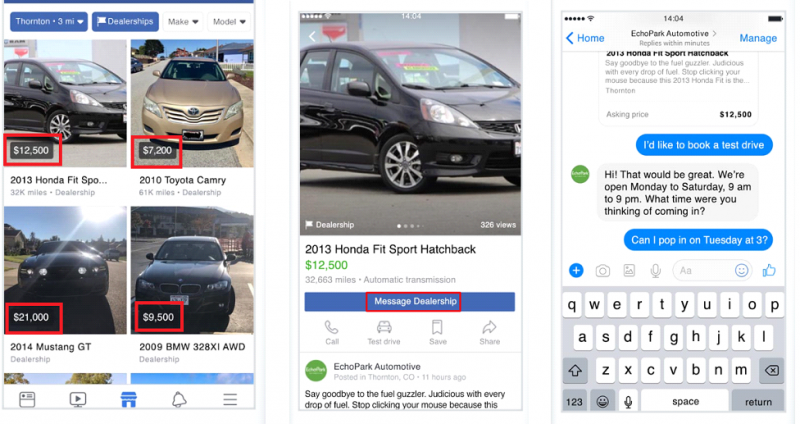
That’s what Facebook Messenger aims for. Offering a free service that makes it easy for businesses to carry out transactions without exchanging addresses or phone numbers.


Discover more about how to advertise your car dealership on Facebook.
Facebook Marketplace algorithm
Here’s a quick overview of how Facebook Marketplace’s algorithm works:
- For buyers, it suggests visually similar items using computer vision (Meta’s AI used to analyze and recognize visual elements in images). Listings can also be translated into the buyer’s preferred language.
- Some sellers may see listing-assistance features such as category suggestions, price suggestions, image tools, or AI-assisted listing details, depending on region and account eligibility.
Ideally, the algorithm displays products similar to what buyers have searched or viewed. As an advertiser, it’s your job to make sure to optimize your listings with relevant tags and search-friendly descriptions.
Facebook Marketplace’s new changes and updates in 2025
The economy is dynamic, and so is Facebook Marketplace. Here are some of the latest updates to keep up with:
- How Facebook Marketplace works now
Local pickup deals are handled off-platform. This is while shipped orders run through Marketplace Checkout.
And for all shipped Marketplace orders, payment is on-platform via Marketplace Checkout (Meta Pay) with a 10% fee and Purchase Protection.
- Listing rules & ads
Listing is free, but sellers can pay to boost visibility. Sellers must follow local laws and Meta’s policies or risk removal.
- Buyer protection
Local and off-platform deals have almost no formal protection. Refunds in these cases are up to the individual seller.
However, shipped orders paid through Marketplace Checkout may be covered by Meta Purchase Protection, which can refund buyers for eligible issues.
- eBay listings on Marketplace (still limited)
Meta’s partner-listing program allows select eBay listings to appear on Facebook Marketplace in the U.S., Germany, and France. Buyers view the listing on Marketplace but complete the purchase on eBay.
- Shipping label changes
After Feb 24, 2025, Meta removed prepaid labels for new listings, and many sellers still have to provide their own labels.
Since late 2025, however, prepaid labels have been reintroduced for some accounts, so availability now varies by seller and region.
- New selling fees
For shipped Marketplace orders, Meta deducts a 10% selling fee, or $0.80 minimum, from the payout.
- AI summary problems
When listings are syndicated through partner platforms, sellers should carefully review auto-generated summaries and imported listing details. This is important because inaccurate details can lead to buyer disputes.
- Persistent EU regulatory pressure
EU regulatory pressure continues to shape Marketplace. After a €797 million EU antitrust fine, Meta introduced partner-listing options that allow rival classified-ad providers to show listings on Facebook Marketplace while Meta appeals the decision.
- More marketplace partners
Industry reporting in 2025 indicated that Poshmark listings were beginning to appear on Facebook Marketplace, similar to the eBay partner-listing model. This is opt-in for U.S. Poshmark sellers and only shows fashion categories for now.
What sellers should know now
Shops on Facebook and Instagram now use website checkout rather than native in-app checkout, while Marketplace shipping checkout remains separate.
Sellers should verify category availability, shipping-label options, checkout eligibility, and buyer-protection rules in their own account because these vary by country, seller type, and listing category.
How to set up a Facebook Marketplace account
So, how to access Facebook Marketplace? Setting up a Facebook Marketplace account is relatively straightforward. First, you need to have an active Facebook account.
If you are a business owner, you are required to have a personal or business Facebook account. If you don’t have an account, go ahead and create one. From there, follow these step-by-step instructions:
- Log in to your Facebook account and click on the “Marketplace” icon in the left-hand column.
- If prompted, confirm your location and then click on “Continue.”
- Review and agree to the Marketplace terms of service.
- Set up your profile by adding a profile picture (to your Page), cover photo, and description. Adding a profile picture and cover photo is recommended to make your account more personalized.
- If you plan to sell items, click the “Sell Something” button and follow the prompts to create a new listing.
- If you want to buy items, use the search bar to browse available listings or filter results by category, location, or price.
- When you find something you’re interested in, click on the listing to view more details and contact the seller.
Once your Marketplace profile is completed, you can continue browsing and posting items for sale, and even join local buying and selling groups.
The platform’s user-friendly interface makes it easy for anyone to start buying and selling on Facebook Marketplace.
Looking for more tips? Here’s a list of 10 actionable strategies for selling more on Facebook Marketplace.

How to list products on Facebook Marketplace
Always list your products so that users can see them on the Marketplace, Facebook Feed, and other relevant places on Facebook. Your Marketplace product listing must follow these instructions.
Also, you need to read the Facebook Community Standards. Then, follow this step-by-step process to list your products.
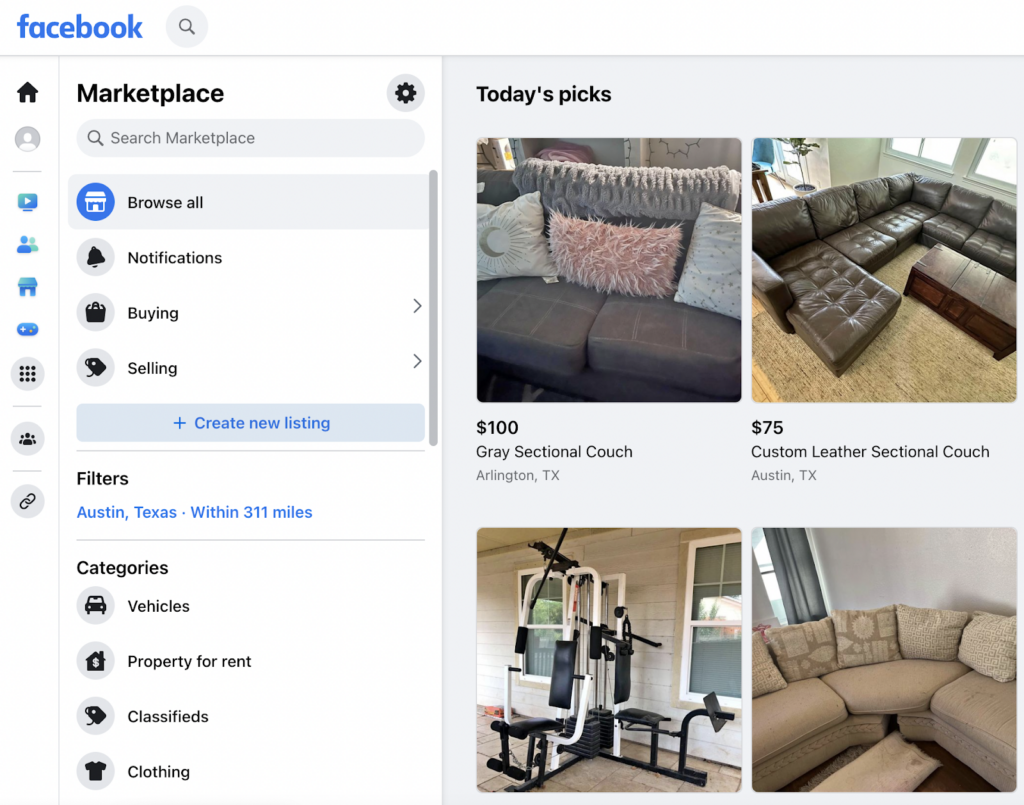
1. On the Feed, click on Marketplace.
2. Click on Create a new listing from the menu under Marketplace.
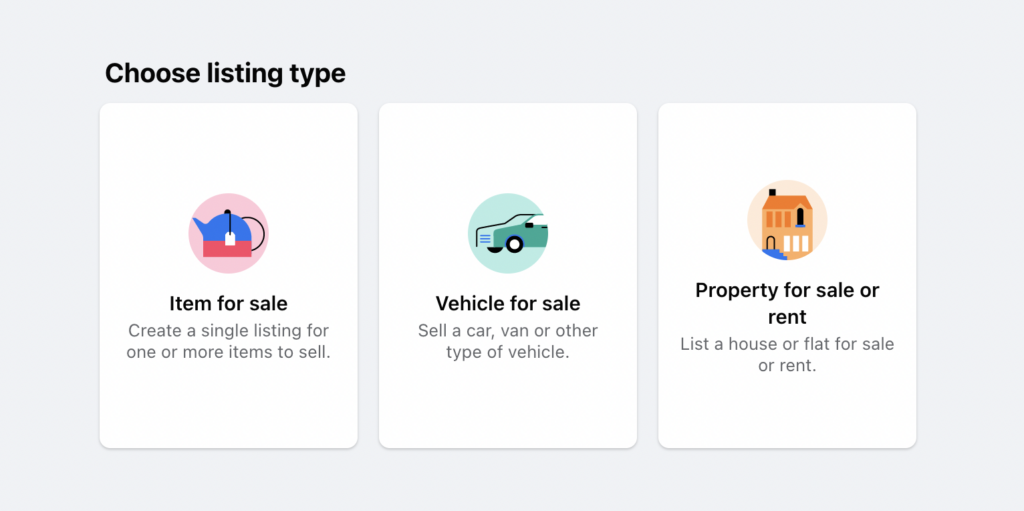
3. Select the product you want to list from the three options provided, i.e., Items for sale, Vehicles for sale, and Homes for rent. For the sake of this example, we’ll use the “item for sale” option.
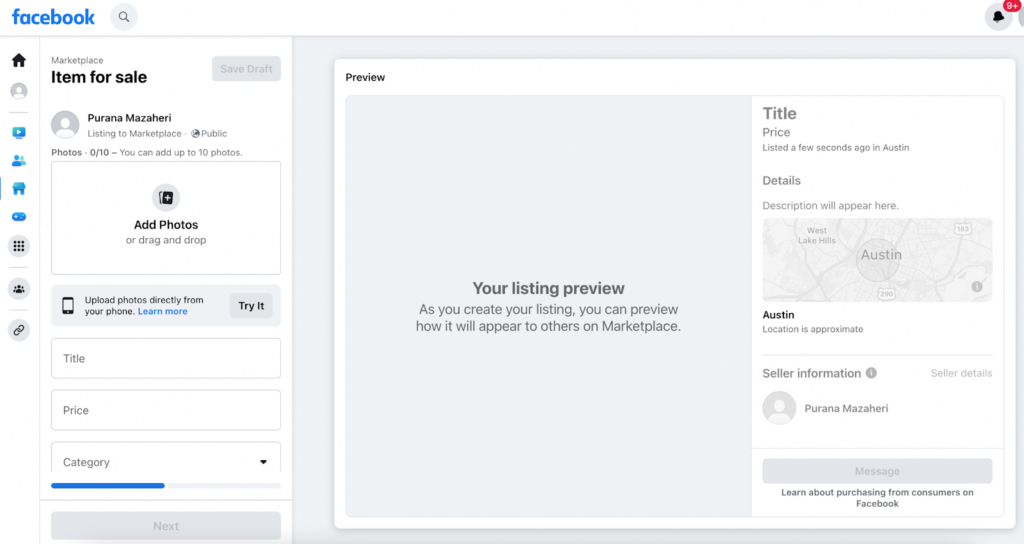
4. On the next page, select your product category, fill in what you want to sell, set the price and location, and provide a product description. You can also add up to 10 product images.
Click Next to proceed.
5. Click on Publish to publish the listing in the Marketplace. Remember that you have the option of listing your product in more than one place.
Congratulations! Your products are now listed on Facebook Marketplace. And it’s time to sell them. You can access your store through the shop tab on your Facebook Business Page.
Listing your products will make them accessible to prospective buyers, making it possible to get sales. However, using Facebook ads can speed up the process and fetch more eyeballs on your products.
How to add tags on Facebook Marketplace listings
So, how do you post on Facebook Marketplace as a business and get more views? It’s easy.
Adding tags to your items helps increase your items’ visibility, making it easier for interested buyers to find them. Descriptive and relevant tags on your listings can attract more views and potentially increase the likelihood of sales.
Also, it can help you organize and categorize your listings so you can manage and track your inventory efficiently.
To add tags on Facebook Marketplace, follow these simple steps:
- Click on “Create New Listing” on your Facebook Marketplace homepage.
- Type in the details of the item you are selling, such as title, description, and price.
- Scroll down to the “Add Tags” section and click on the box.
- Add relevant keywords or phrases that describe your item. Facebook will suggest some popular tags as you type.
- Click on “Add” to incorporate the tag in your listing.
- You can add up to three tags per item on Facebook Marketplace. However, the tag field and limits can vary by account and region.
Use relevant keywords that accurately describe your item. This helps attract the right audience and improve your chances of making a sale.
Some sellers have reported that the tag field has been missing for them since late 2024. Apparently, the limit and availability vary by account type and region.
How to sell on Facebook Marketplace as a business
There are three main ways businesses can sell through Facebook Marketplace.
Option 1: Display your offerings
To professionally sell on Facebook Marketplace, first, you need to reach your audience. Whether you’re an expert or just getting started, listing your items on Facebook Marketplace is easy. Here’s how to do it:
1. First, log in to your account and navigate to Marketplace.

2. Find and click the “Create New Listing” button on the left menu. It’s your gateway to Marketplace sales.

3. Then, it’s time to pick your listing type, which you can choose based on your products.
4. Showcase your item by uploading up to 10 high-quality pictures. Remember, eye-catching pictures attract more buyers.
5. Next, add a catchy title, the price that meets everyone’s expectations, and all other important details like category, condition, and a description that’ll make your items irresistible.

6. Adding your approximate location is helpful for both the Marketplace algorithm and your potential buyers.
Option 2: Set up your Facebook page shop
Want to get your shop up and running on Facebook and Instagram?
If you’re new to the whole Facebook Business Page and catalog setup, don’t worry – you can set those up as you create your shop.
And if you already have an existing page and catalog, here’s what you need:
- As a business account manager, you need full control of the account and account management permissions for the page and catalog.
- For Instagram, you must have an Instagram business account linked up. Remember, your business account should own that Instagram business account.
Note: If you’ve decided to sell only on Instagram, you don’t need a Facebook Business Page for this setup.
Setting up your shop:
1. Navigate to the “Create your shop” page and click “Next.”

2. If you’re already a seller on Shopify, BigCommerce, which is a part of the Commerce product bundle, or another partner platform, you can directly sync your product lists here.

If you’re not using a partner platform, click ‘I don’t use these platforms’. Otherwise, select your platform to continue the setup.
3. Select your location and click “Next.”

4. Then, select your page or create a new one. For Instagram, select your Instagram business account. Click “Next.”

5. Then, add the delivery destination and choose the catalog you want for your shop. Make sure it meets the catalog eligibility requirements. Remember, you won’t be able to change this.
No catalog yet? Facebook automatically creates one named “Items for (your page’s name and ID)” in the Commerce Manager. You can add your products later.
Review your shop details, accept the Seller Agreement, and click “Finish setup”. And voilà, your shop is ready!
Now, you can manage your catalog by adding products, creating collections, customizing your shop’s look and feel, and getting ready to sell.
Option 3: Sell as a business
This option is only available to a select group of sellers. Facebook has been rolling this out since 2022.
Instead of connecting Marketplace to your personal account or Shop, you’ll be listing your items on Marketplace as your business. It’s like giving your business its own special spotlight.
Changes to Meta Shops
Meta has phased out native in-app Checkout for Shops; shoppers are now redirected to merchants’ websites to complete purchases. Marketplace Checkout for shipped items remains separate and is still active.
Here’s what has changed:
- Native Checkout removed: Meta is ending in-app Checkout for U.S. Shops.
- External Checkout required: Shoppers will now be redirected to your website to complete purchases.
- Deprecated features: Order management, returns, and reviews tied to native Checkout will no longer be supported.
- International markets: Merchants should check Commerce Manager for country-specific eligibility and setup notices.
- Product discovery still supported: You can still use product tags, ads, and catalog listings to drive traffic.
How to advertise on Facebook Marketplace
Where can you get started with advertising on Facebook Marketplace?
Start by signing in to your Facebook account. Then, navigate to Marketplace, either by tapping the grid button, scrolling down, or clicking Marketplace. You can also do this by clicking the Marketplace button directly.
While scrolling down the Marketplace page, you can see all the organic listings suggested by the platform, alongside a few sponsored ads.
The sponsored Facebook Marketplace ads are designed to target the right audience mostly based on location and the user’s previous interactions.
Here’s the step-by-step guide on how to place an ad on Facebook Marketplace:
1. Go to the Business Manager using the ad account you want to use to run your campaigns.
2. Select your Campaign Objective according to your ad’s target goal. This can support awareness, consideration, or conversions for your product.
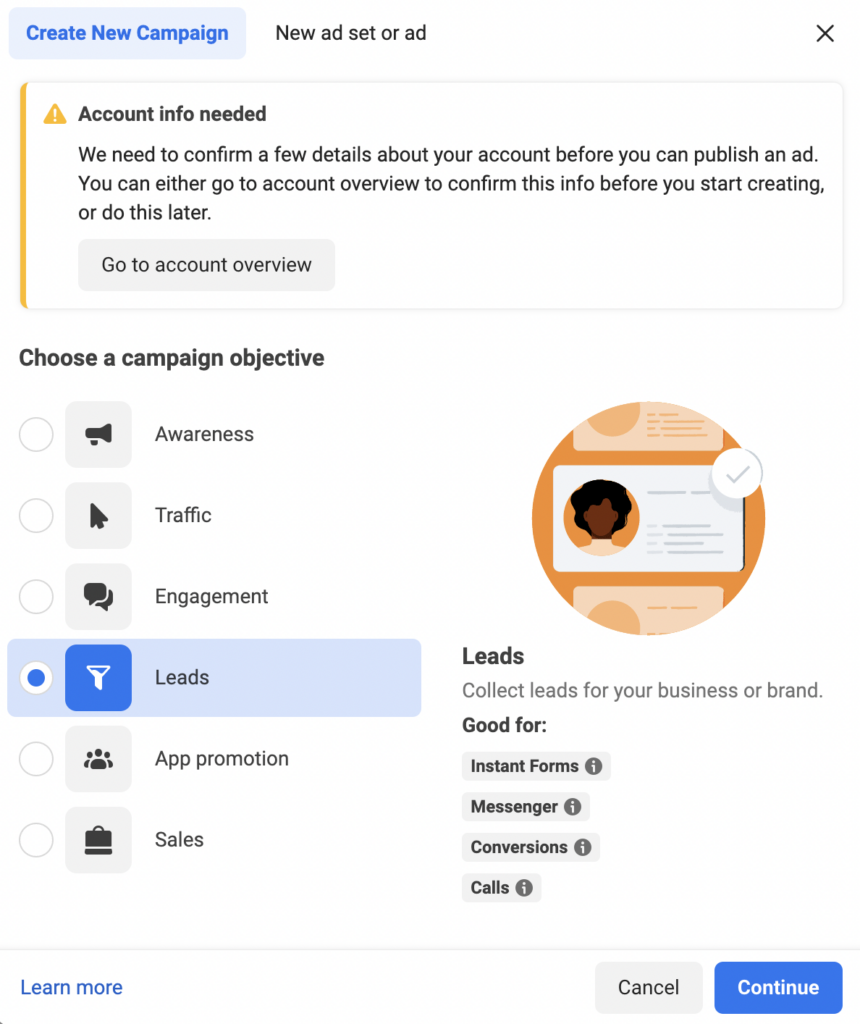
In this example, select the “Leads” objective and click Continue. These configurations help display ads to people who are most likely to buy.
3. The next step is to set your campaign settings, and ad set targeting, much the same way as setting up any type of Facebook ad.
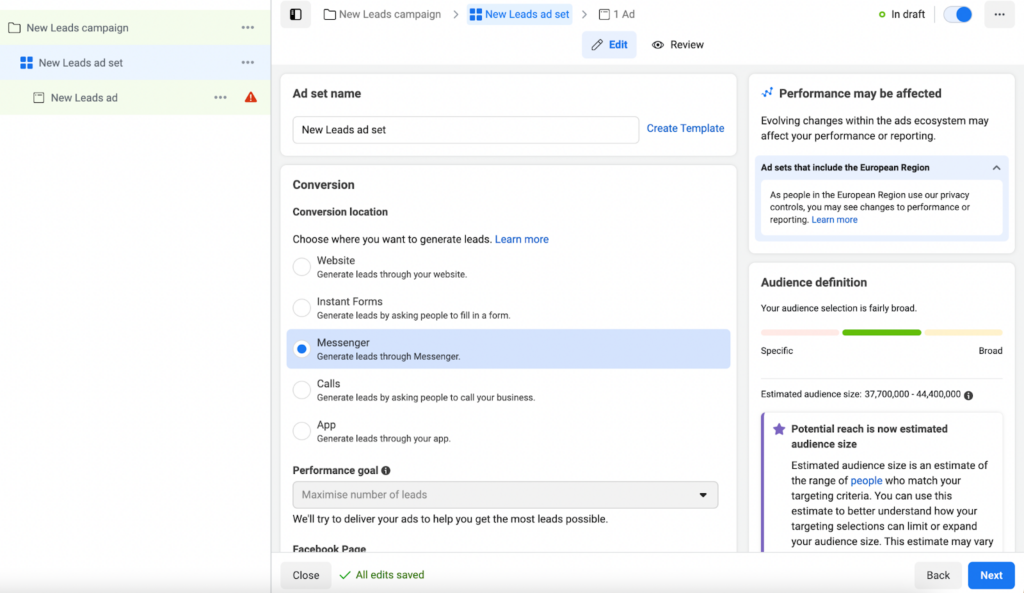
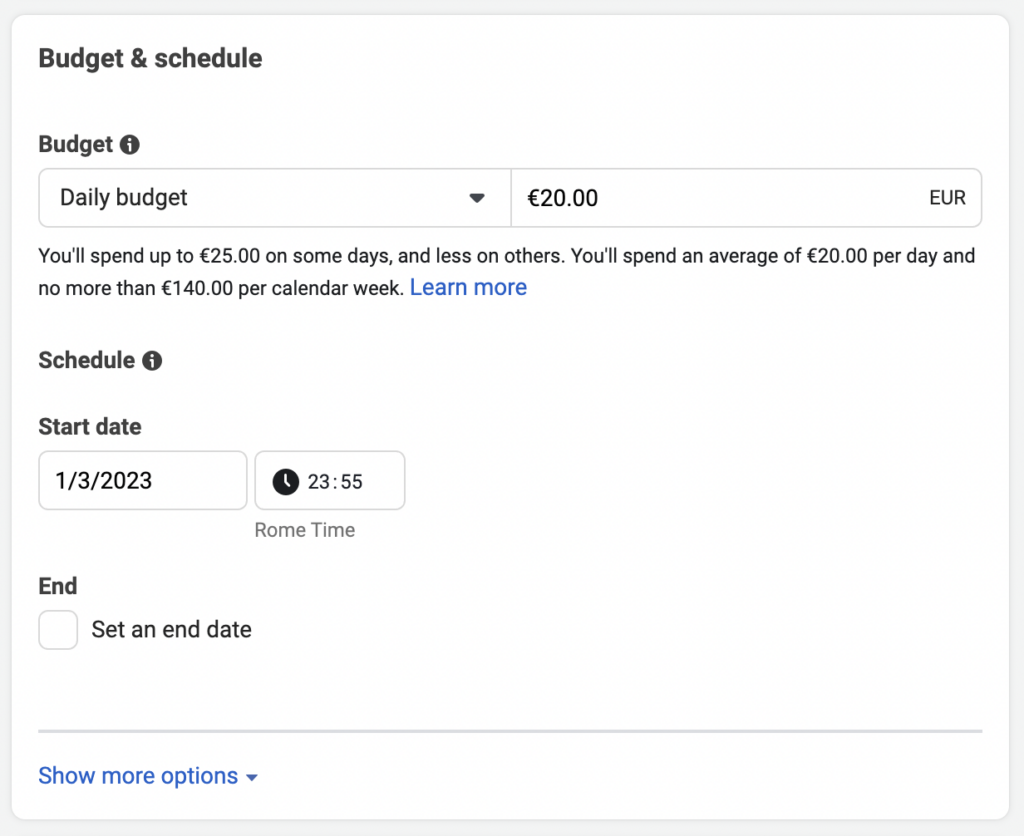
Once completed, scroll down to fill in the rest of the information, such as the budget options.
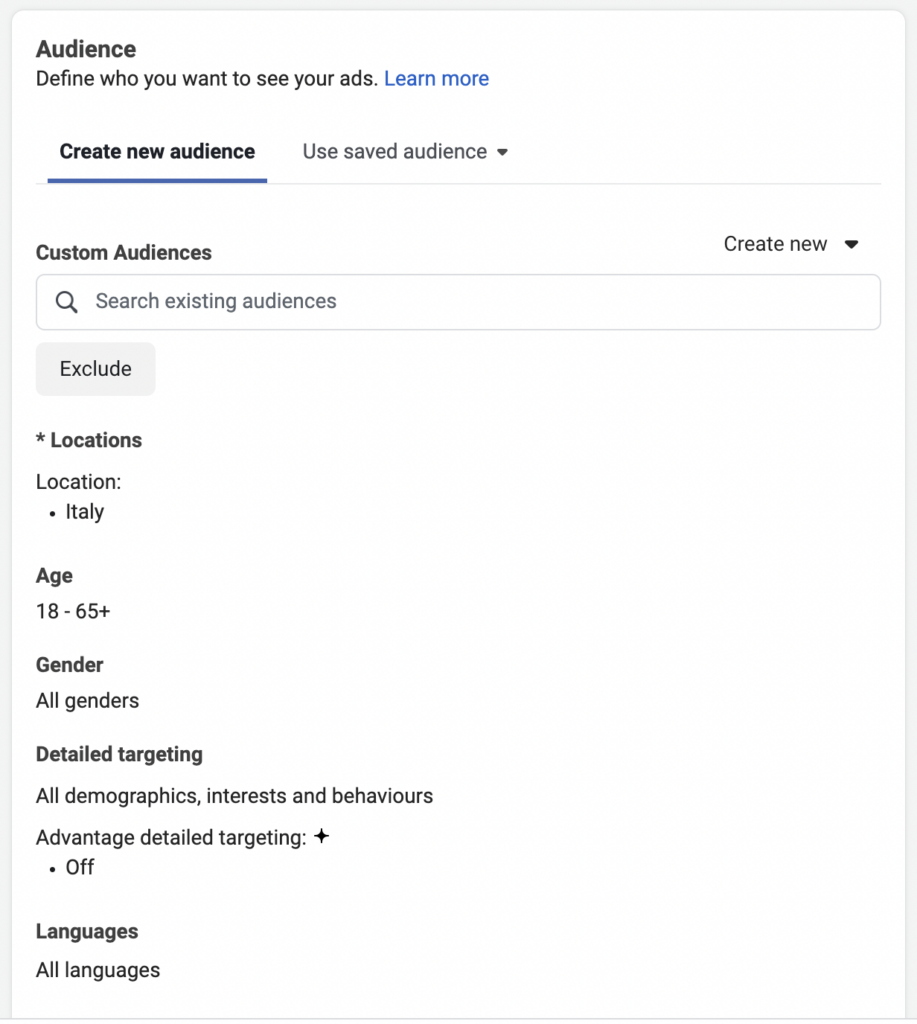
4. Select your Audience. You can use a new audience or an existing audience. Choose as appropriate.
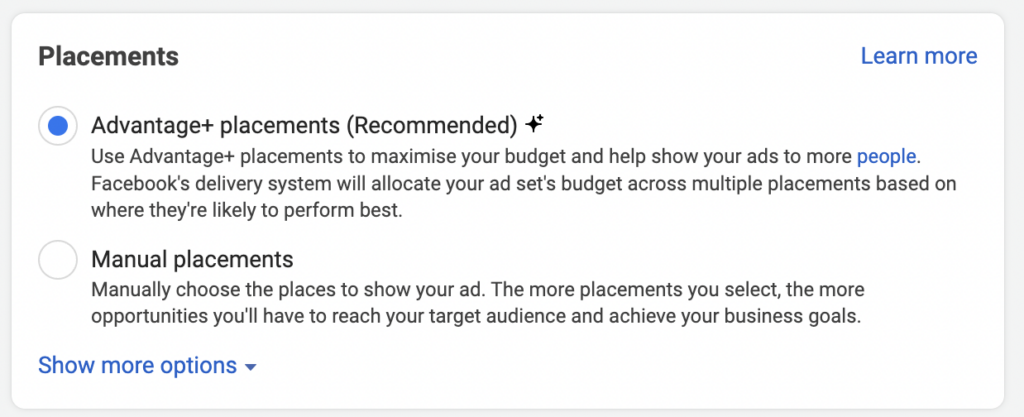
5. On the ad set screen, find Placements by scrolling down. You’ll have to uncheck all the boxes except for Facebook Feed and Facebook Marketplace and click Next.
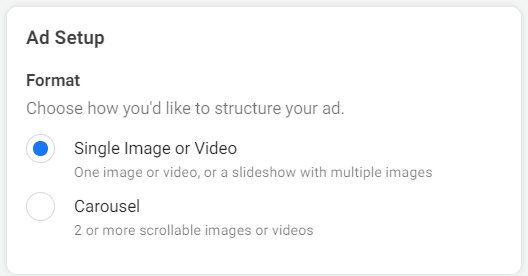
6. Here, ensure your Facebook page is selected first. Then, choose your ad creatives. Start by selecting the Ad formats: Single Image, Carousel, or Video.
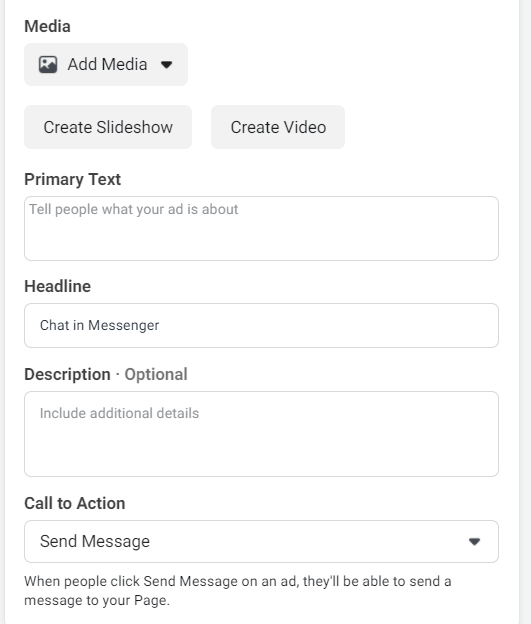
Also, include a suitable headline, an appropriate product description, a click-worthy call-to-action for the ad, as well as the Media.
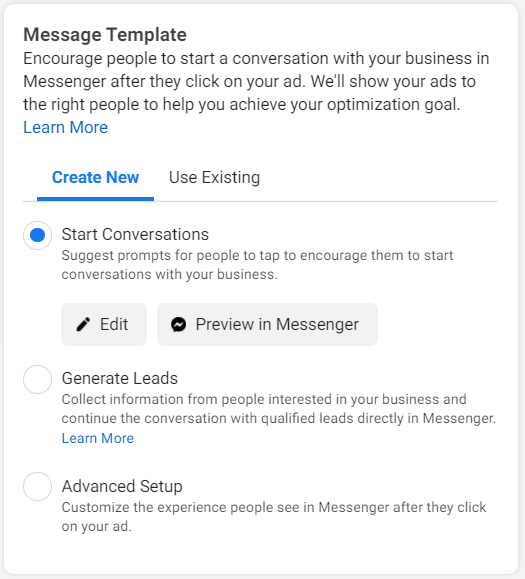
7. Create a message template. This is where you can encourage people to talk with you after they click on the ad. This allows you to start a conversation, generate leads, or define a custom experience for users who interact with your ad.
8. Select the conversion tracking, i.e., Meta Pixel, Conversions API, app events, or offline events, depending on your setup.
While creating your ad, pay attention to the window screen on the right, where you can see what your ad will look like in the Marketplace placement vs. the Feed.
Click the three dots on the right and select Expand to further see how your ad will appear on the:
- mobile Marketplace feed,
- desktop Marketplace feed, and
- desktop Marketplace details page.
You can modify and edit your ad accordingly.
9. Click Publish. Your ads will go into review, and Facebook will approve them if they meet the regulations. After that, people will see your ads as they browse the Marketplace.
Below is an example of a Facebook Marketplace ad.

How do I see my listings on Facebook Marketplace?
Once logged in, click on the Facebook logo at the top-left of your Home Page or any other page. Then, find and click on Marketplace. On the leftmost sidebar, you’ll find Your account; click on it to see Your Listings.
Remember that managing your listings is an ongoing task and requires your attention, such as removing duplicate listings, adding new data, etc.
Editing your Facebook Marketplace ad
You might no longer want to run a campaign, or you may want to modify your ad. Here’s how you can manage your Marketplace ads.
How to edit a Facebook Marketplace ad
To edit a Marketplace listing for a single product or multiple items:
- Go to the feed, and click on Marketplace.
- Find Sale in the left sidebar menu.
- Select Your Ads.
- Select the ad you’d like to edit.
- Click on Edit Ad.
- Edit the listing, and click Update once completed.
However, you can only modify available items and products that have not generated sales. If your ad is waiting to be approved, an order related to the ad is pending, or the ad has generated labels, or yielded a sale, they cannot be modified.
Also, there’s no need to edit your ad to ensure the number of items appears in a multi-item ad. The ad automatically displays the number of items available if there are fewer than 10 items.
Deleting Facebook Marketplace ads
Asking yourself, how to delete my Marketplace ad? All you have to do is:
- Go to your Feed, and click on Marketplace.
- Find and select Sale in the left menu.
- Select Your Ads.
- Select the ad you’d like to delete.
- Click on Delete. Then, you are shown another window. This is to ensure your ads don’t get deleted accidentally. Click Delete again to remove your ad permanently.
Do Facebook Marketplace ads expire?
Yes, Facebook Marketplace ads do expire. Facebook Marketplace listings often lose visibility after about 7 days, and eligible listings may be renewable weekly.
That said, Marketplace listings do not all follow one universal expiry rule. Some sellers may be prompted to renew or refresh listings after a period of time, while boosted listings run according to the ad schedule and budget set in Ads Manager.
The good news is you can also renew it every week, so it keeps getting seen, as long as the item is still available.
If you boost a listing as a paid ad, how long it runs depends on the budget and schedule you set in Ads Manager.
Even after a boosted listing stops running, the listing itself doesn’t vanish forever. You can still manage it in Your Listings, renew it, or repost it if you want to start fresh.
LeadsBridge can help here by automatically sending the leads you get from your Marketplace ads into your CRM or email tool, so you don’t lose track of interested buyers.


That way, even when your ad times out, your lead data is saved, and you can keep following up and making sales.
How to better use Facebook Marketplace
There are different ways to get even more out of this feature:
Get to know popular products that sell
Products change in performance across platforms. It’s best to research popular products on Facebook Marketplace by exploring similar sellers and their “Top Picks” (a.k.a. Today’s Picks) section.

Once you discover a similar product that you want to sell, create ads for those products to expand their reach on the platform and increase sales.
The second way to discover popular products that sell on Facebook is by visiting business pages similar to yours. The top-performing items are always listed at the top of the page.
Check out the example below from the Electronic Gadgets’ Facebook Page.

One of the most popular products in the shop is pinned at the top to increase visibility and sales. If you sell watches, this may suggest that Apple Watch listings perform well with that audience.
Test the performance of new campaigns and products
Do you plan on launching a new product for your business?
Facebook helps you know the products your audience prefers to buy. All you need to do is create a listing, and Facebook will take care of the rest.
In addition, you can run tests to determine the best price to sell your product by using discounts and varying prices.
Boost discoverability and awareness
When people are aware of your products, they are more likely to purchase them. That’s why using the right categories is important.
Marketplace organizes listings into several high-level categories (e.g., Vehicles, Home & Kitchen, Electronics, Fashion), each with multiple subcategories.
Learn more about ways you can boost your Facebook Marketplace account.
Build trust with your audience
Facebook Marketplace has tools that help to foster trust with prospects, such as the Messenger tool, which was originally designed as a messaging app.

Among Messenger’s many features are sharing photos & videos, stories, location, and connecting with businesses. Use it to create one-on-one dialogues with your prospects.
Use Facebook Marketplace Insights
Facebook Marketplace Insights is a tool that delivers data and analytics to help sellers track their performance on the platform.
This data gives you a better understanding of your:
- Audience preferences
- Targeting angles
- Demographic responses
- Listing optimization
Keep in mind that for casual sellers, Marketplace insights can be limited. For advertisers, reporting is in Ads Manager. For Shops and catalogs, reporting is in Commerce Manager or Meta Business Suite.
How to maximize Facebook Marketplace ads for your business
Creating an ad for your products on Marketplace does not always guarantee good results, but you can maximize your ad ROI.
Here are two strategies you can use to get better performance out of your ads:
1. Integrate your Facebook Marketplace ads with your favorite platform
First, integrate Facebook Marketplace ads with different CRM, autoresponders, and emails through LeadsBridge. Here are some of our most popular Marketplace integrations:


These data bridges help you funnel your leads directly to your CRM or autoresponder, where you can quickly communicate with them.
2. Create custom audiences and Lookalike Audiences for precise targeting
The second way to maximize your ROI is to create a Facebook custom audience from your customer list on your system automatically. These data bridges help you enhance your audience targeting on Facebook Marketplace.


From there, create a custom audience and a lookalike audience to target users who have an interest in your product, have purchased from your store before, or follow your Facebook page.

A lookalike audience includes people who share traits with your existing customers or prospects. These audiences help you get the highest conversion rates from your ads.
Read a detailed blog post on the Facebook lookalike audience to learn how it works.
You can still use customer lists and lookalike-style targeting where available, but Meta is increasingly moving advertisers toward Advantage+ audience tools, broad targeting, and conversion-signal quality.
FAQs
1. How to run ads on Facebook Marketplace?
To run ads on Facebook Marketplace, create a campaign in Meta Ads Manager, choose your objective, audience, budget, schedule, and ad creative. In Placements, select Facebook Marketplace if it’s available for your campaign. Marketplace ads appear while users browse listings.
2. How many ads can you post on Facebook Marketplace?
There is no fixed public limit for how many ads you can post on Facebook Marketplace. Limits may depend on your account history, location, seller status, ad account health, and Meta’s policies. Avoid posting duplicate or misleading listings, as this can reduce visibility or trigger restrictions.
But there are limits on how many new Marketplace listings you can create each calendar month.
3. How long do ads stay on Facebook Marketplace?
Paid Facebook Marketplace ads stay active based on the schedule and budget you set in Meta Ads Manager. Regular Marketplace listings may stay visible while the item is available, but visibility can drop over time, and some listings may need to be renewed or reposted.
Final thoughts
Facebook Marketplace offers reach to a massive audience. It’s free to set up and easy to use, with a ton of useful features.
To increase your performance, you can integrate the Marketplace with your favorite marketing tools, such as CRMs and autoresponders. That’s where LeadsBridge comes in. With an array of integrations, LeadsBridge helps you streamline your Facebook Marketplace ads’ data transfer management processes.
Discover all the possible Facebook Marketplace ad integrations here.