TL;DR
- Facebook Custom Audiences target people already familiar with your business.
- You can build audiences from website visitors, CRM contacts, app users, and engagement.
- Meta Pixel and CRM integrations help track users and automate updates.
- Retargeting warm audiences can lower ad costs and improve conversions.
- LeadsBridge helps automate syncing between your tools and Facebook audiences.
- Keep audiences updated, exclude existing customers, and follow privacy rules.
One of Meta’s most attractive ad features is its targeting tools, such as custom audiences.
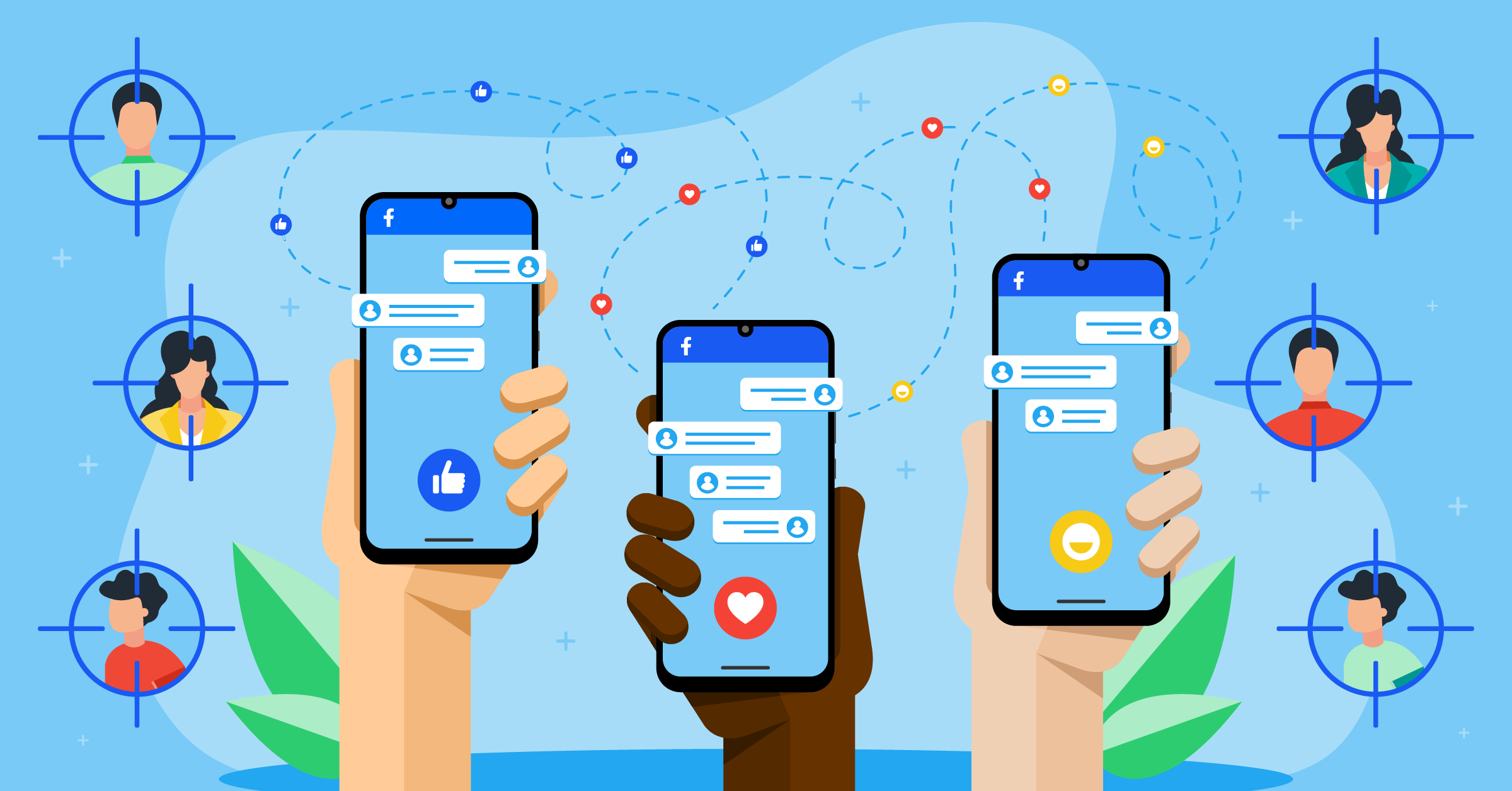
Facebook custom audiences help advertisers reach people who already know their business, such as customers, leads, website visitors, app users, and people who engaged with their content.
To actually be able to use these advantages, however, you’ll need to connect your CRM, email tool, website, app, or offline data source to Meta. You can do this through custom audiences integrations through tools like LeadsBridge.
This connection allows you to automatically create the best audiences using your CRM segments, email marketing contacts, or customer lists.
The data you collect can also be used for retargeting or to exclude audiences at every stage of the funnel.
- TL;DR
- What are Facebook custom audiences?
- Benefits of using Facebook custom audiences
- Types of Facebook custom audiences
- How to automate your custom audiences with LeadsBridge
- How to automate audience segmentation through LeadsBridge
- How to target an email list on Facebook
- Facebook custom audience best practices
- Custom audiences: FAQs
- Final thoughts
In this article, we’ll talk about everything you need to know about Facebook custom audiences and unique ways to boost your campaign’s profitability including automated integrations you can set up in a few clicks.


What are Facebook custom audiences?
Custom Audiences are a Meta ad tool that lets you reach people who have already interacted with your business.
Your custom audiences are compiled from individuals who have displayed interest in your business. This includes people in your CRM, website visitors, app users, email subscribers, customers, leads, and offline buyers.
What’s more, you can fine-tune your audience by adding or excluding individuals based on specific actions they’ve taken. For example, you can exclude recent app subscribers to ensure your ad budget isn’t wasted on the wrong audience.
But that’s not all – with custom audiences, you can even craft a lookalike audience to help you reach new people who are similar to your best customers. This approach maximizes your campaign’s return on investment (ROI).
Benefits of using Facebook custom audiences
Facebook custom audiences can boost ad campaigns in several ways. Here are four key advantages, supported by case studies to show how they work and their impact.
Generate more qualified leads at a lower cost
Facebook custom audiences is a useful tool for generating high-quality leads at a lower cost. How? By reconnecting with those who’ve previously shown interest in your business but have yet to make a purchase.
Wittchen used custom audiences to retarget people who had already visited its website, showing them relevant Facebook and Instagram ads.

They wanted to reach warmer, already-interested shoppers while letting Meta optimize toward people most likely to purchase.
As a result, the brand improved campaign efficiency and drove stronger results, including a 40% lift in purchases and more search and direct traffic.
Drive quality traffic to your website
Facebook custom audiences can help increase your website traffic. Alongside custom audiences, you can use Meta Advantage+ tools.
This feature helps Meta find better delivery opportunities, but results depend on your campaign setup, budget, data quality, and audience rules.
Drive in-store visits
With Facebook custom audiences, you can retarget customers who have bought from your offline store or engaged with your services.
Increase mobile app installations
If you have an app for your business, you can use custom audiences to increase your app installs by targeting the right audience with your ad.

Types of Facebook custom audiences
The main custom audience sources are website, customer list, app activity, offline activity, and engagement.
However, the exact options you see may depend on your ad account, assets, region, and campaign setup.

1. Custom audiences based on website activity (pixel)
Website custom audiences are based on what people do on your site.
For example, someone might visit a product page, add something to their cart, and leave without buying. If your Meta Pixel is set up, Meta can track that action and let you retarget that person with a relevant ad.
Before you create this type of audience, you need to set up the Meta Pixel. For better tracking, use the Meta Conversions API too, when possible.
What is the Meta Pixel?
The Meta Pixel is a small piece of code you add to your website. It helps Meta understand what people do on your site, such as:
- Viewing a page
- Adding something to the cart
- Starting checkout
- Making a purchase
This data helps you create custom audiences for retargeting ads.
So, when someone looks at a product on your website and later sees an ad for that product on Facebook or Instagram, that is usually website retargeting in action.
How to create a website custom audience
To create a custom audience from website visitors:
- Log in to Meta Ads Manager with access to the right ad account and business portfolio.

- Open the left-side menu and click Audiences.
- Click Create a custom audience.

- Choose Website as your audience source.

- Click Next.
- Choose which website visitors you want to include.

You can create audiences based on:
| Option | What it means |
| All website visitors | People who visited your site during the selected time period |
| Specific web pages | People who visited URLs that include or exclude certain words |
| Time spent | Your top 5%, 10%, or 25% of visitors by time on site |
| Pixel events | People who completed actions like purchases, add-to-cart events, or form submissions |

After that, name your audience and add a short description so you can recognize it later. Then click Create Audience.
How long people stay in the audience depends on the event. For most website events, the max is 180 days. For purchase events, you can now go up to 730 days, which is two years. If you built a 180-day purchase audience before May 2026, check it. Meta probably stretched it to 730 days on its own.
2. Custom audiences based on CRM segments
Customer list audiences are built from people who already gave your business their information.
This can include:
- Customers
- Leads
- Newsletter subscribers
- Past buyers
- Trial users
- Sales contacts
Usually, this data comes from your CRM, email tool, or autoresponder. You can upload it to Meta using a CSV or TXT file.
Make sure your file is formatted correctly, and only use data you have permission to use for advertising.
How to create a customer list audience
To create a custom audience from your CRM data:
- Download the customer or lead list from your CRM, email platform, or autoresponder.
- Go to the custom audiences page.
- Choose Customer list.

- Decide how you want to add your data.
You can usually add the list in one of two ways:
| Method | How it works |
| Import from a supported tool | Connect a platform like Mailchimp, if available in your account |
| Upload a CSV or TXT file | Upload your customer list manually |
When uploading a file, use strong identifiers like:
- Phone number
- First name
- Last name
- City
- State
- ZIP or postal code
- Country
- Date of birth
- Gender
- Mobile advertiser ID
- App user ID
Follow Meta’s formatting guidelines and use Meta’s template to avoid mistakes.

After uploading your list:
- Name your audience.
- Add a short description.
- Match each column to the right identifier.

- Confirm that Meta mapped the data correctly.

- Click Import & Create.
Meta will then try to match your customer data to people across Meta technologies. The better your data quality, the better your match rate is likely to be.
A faster way to sync CRM audiences
Uploading customer lists by hand can get messy fast. It takes time, and it is easy to make mistakes.
A better option is to use an automated data bridge, like LeadsBridge.
With LeadsBridge, you can connect your CRM, email platform, or customer database directly to Facebook Custom Audiences. This keeps your audiences updated automatically.
We have a whole host of integrations available for Facebook custom audiences. Here are the most popular data bridges according to our users:


3. App activity custom audiences
App activity audiences are based on what people do inside your app.
You can use them to reach people who installed your app, opened it, made a purchase, completed a level, added payment details, or took another in-app action.
To send app activity to Meta, you may need to use:
- Meta SDK
- Facebook SDK (for Android)
- App Events
- Conversions API for App Events
Before creating this audience, you need to register your app, set up the SDK, and log app events.
Best campaign objectives for app activity audiences
Choose your campaign objective based on what you want people to do:
| Goal | Recommended objective |
| Get more installs | App promotion |
| Drive app events | App promotion |
| Increase purchases | Sales |
| Drive visits to an app or website | Traffic |
How to create an app activity audience
To create an app activity custom audience:
- Go to the custom audiences page.
- Select App activity.
- Click Next.

- Choose the app you want to use.
- Name your audience and add a description.
- Choose the in-app event or action you want to use.

- Create your audience.
You can build audiences from actions like:
- Opened the app
- Reached a certain level
- Added payment info
- Made a purchase
- Spent a certain amount of money
This is useful when you want to bring users back into your app or move them toward a specific action.
4. Offline activity custom audiences
Offline activity audiences are based on actions people take outside your website or app.
This can include:
- In-store purchases
- Phone sales
- CRM-recorded deals
- Offline appointments
- Sales team updates
These audiences use the offline events you send to a dataset in Meta Events Manager, usually through the Conversions API or a CRM integration. In many cases, you can keep people in these audiences for up to 180 days, but this can vary based on your setup and Meta’s current options.
Always check the retention window available in your account when creating the audience.
When to use offline activity audiences
Offline activity audiences are useful when online tracking does not tell the full story.
For example, you can use them to:
- Exclude recent in-store buyers from seeing new customer ads
- Retarget people who bought offline
- Build lookalike audiences from offline customers
- Reach people similar to your best offline buyers
How to create an offline activity audience
To create an offline activity custom audience:
- Go to the custom audiences page.
- Select Offline activity.

- Click Next.
- Choose the dataset that holds your offline events.
- Add a name and description.

- Create your audience.
If you do not see any Offline Event Sets, you need to create one first in Meta Events Manager.
5. Engagement custom audiences
Engagement custom audiences are based on how people interact with your brand across Meta.
This includes actions people take on:
- Lead forms
- Videos
- Events
- Shops
- Instant Experiences
- Facebook Pages
- On-Facebook listings
These audiences are different from website audiences. Website audiences track behavior on your site. Engagement audiences track behavior inside Meta’s own apps and tools.

They are usually easier to set up because Meta already has the engagement data.
Common engagement audience types
| Engagement type | What it tracks | Best used for |
| Video | People who watched your videos | Retargeting warm viewers |
| Lead form | People who opened or submitted a lead form | Following up with leads or form abandoners |
| Instant Experience | People who opened or clicked inside an Instant Experience | Retargeting high-intent ad engagers |
| Shopping | People who viewed or interacted with products | Retargeting product shoppers |
| Instagram account | People who interacted with your Instagram profile or content | Reaching Instagram engagers |
| Events | People who interacted with your Facebook events | Promoting events or follow-up offers |
| Facebook Page | People who engaged with your Page | Retargeting Page visitors and followers |
| On-Facebook listings | People who viewed or messaged about catalog products | Retargeting product interest |
Video engagement audiences
For video audiences, choose how engaged someone needs to be before they enter the audience.

For example, you may target people who watched:
- A few seconds of your video
- A certain percentage of your video
- A specific video or group of videos
This is useful because someone who watched a video is already familiar with your brand.
Lead form engagement audiences
Lead form audiences are based on how people interacted with your Meta lead forms.

With lead ads, you can target:
- Anyone who opened the form
- People who opened but did not submit it
- People who opened and submitted it

This helps retarget people who showed interest but did not finish the form.
Instant Experience audiences
Instant Experience audiences are based on people who opened or clicked inside one of your ads with Instant Experiences.

You can include:
- People who opened the Instant Experience
- People who clicked a link inside it
This works well for retargeting people who spent time with a more interactive ad.
Shopping engagement audiences
Shopping audiences are based on how people interact with your shop and products on Facebook or Instagram.
You first choose the platform and page you want to use. Then you choose the shopping event that should add someone to the audience, like viewing a product.
Since September 2025, Shops on Facebook and Instagram send buyers to your own website to check out. So if you want to leave out people who already bought, exclude a website purchase audience or a customer list too.
This is useful for retargeting people who browsed your products but didn’t buy.
Instagram account audiences
Instagram engagement audiences are based on actions people take with your Instagram account.

You can create audiences from people who:
- Visited your profile
- Engaged with posts or ads
- Sent a message
- Saved content
This is a good option when Instagram is a major part of your customer journey.
Event audiences
Event audiences are based on people who interacted with your Facebook events.
You can build audiences from people who showed interest, responded, or engaged with an event.

This is useful for event promotion, reminders, and post-event follow-up.
Facebook Page audiences
Facebook Page audiences are based on how people interact with your Page.

You can include people who:
- Visited your Page
- Engaged with posts or ads
- Clicked a call-to-action button
- Sent a message
- Saved your Page or posts
This is a simple way to retarget people who already know your business.
On-Facebook listings audiences
On-Facebook listings audiences are based on product listing activity.

You can target people who:
- Viewed products in your catalog
- Messaged about products in your catalog
This is useful for reaching people who showed product interest but did not take the next step.
Filter engagement audiences by frequency and recency
You can now filter engagement audiences by how often and how recently people engaged. For example, you can pick people who engaged at least three times in the past 30 days, or people who engaged 30 to 60 days ago. It’s an easy way to tell engaged audiences from people who scrolled past once.
How to automate your custom audiences with LeadsBridge
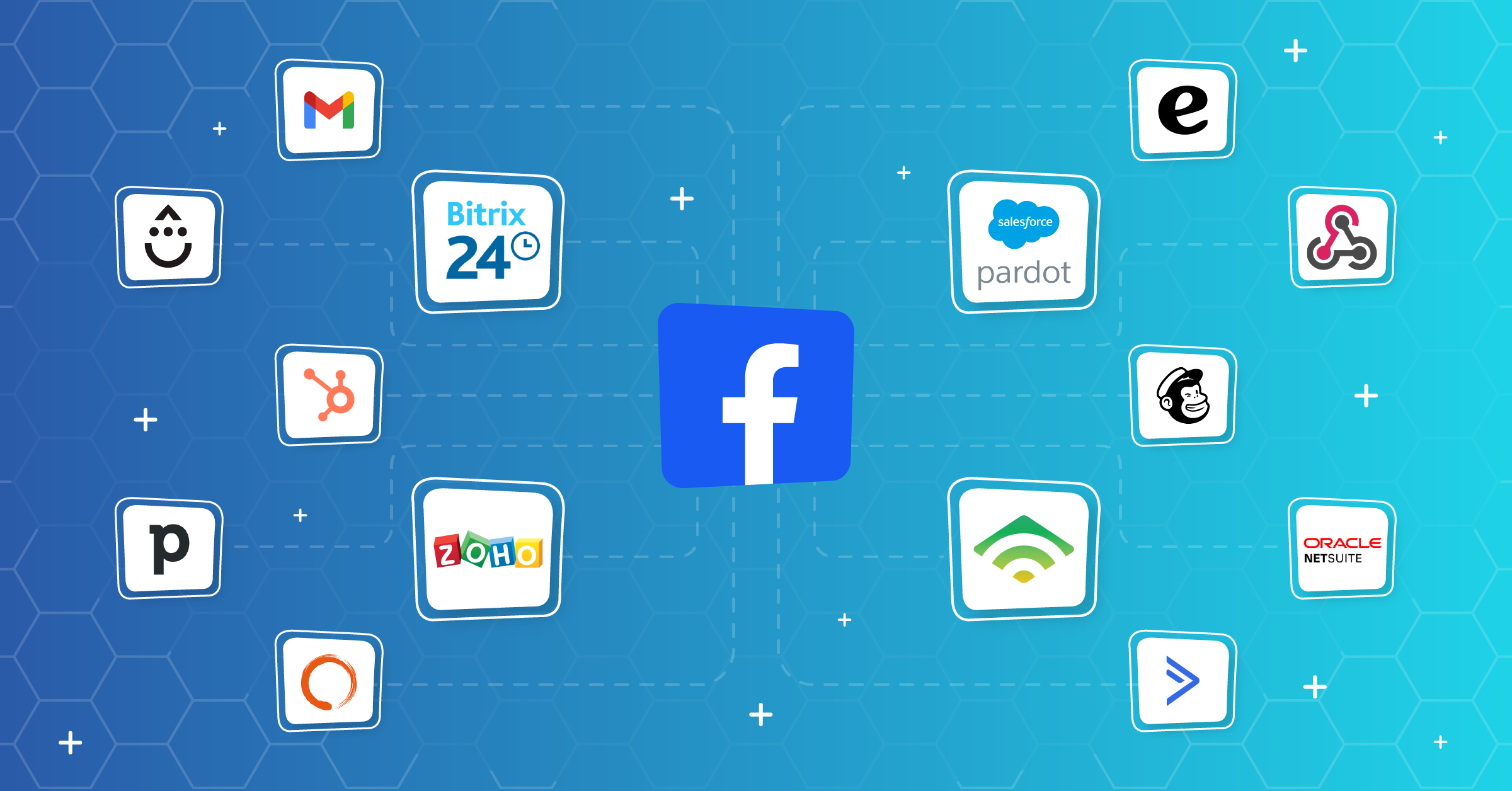
Did you know you can sync data from CRMs and marketing tools such as Salesforce®, Bitrix24, Act-On, HubSpot, Mailchimp, Google Sheets, Zoho CRM, and others? All you need is a Facebook custom audience integration using the LeadsBridge Audience Targeting tool.
Once it’s connected, your audiences update on their own. When someone joins or leaves a segment in your CRM, they’re added to or removed from the matching audience on Meta. That means fewer manual uploads, fewer mismatches, and no ads going to people who already bought.
Take a look at all integrations available for Facebook custom audiences, and some of our most popular data bridges below:


Pricing is based on audience size. You pay a flat fee for the largest number of contacts you sync, not every time someone is added or removed. Want to switch your current plan? Book a call with our sales team.
How to automate audience segmentation through LeadsBridge
Creating automatic Facebook LTV custom audiences saves time and effort since it prevents advertisers from manually uploading custom audiences to the platform.
The Facebook custom audience integration also helps keep your Lifetime Value Audience lists on Facebook updated whenever someone makes a purchase.
Let’s see how to connect your marketing software with a Facebook custom audience integration through LeadsBridge:
Before you start
First of all, log in to your LeadsBridge account or – if you don’t have one yet – create one for free.
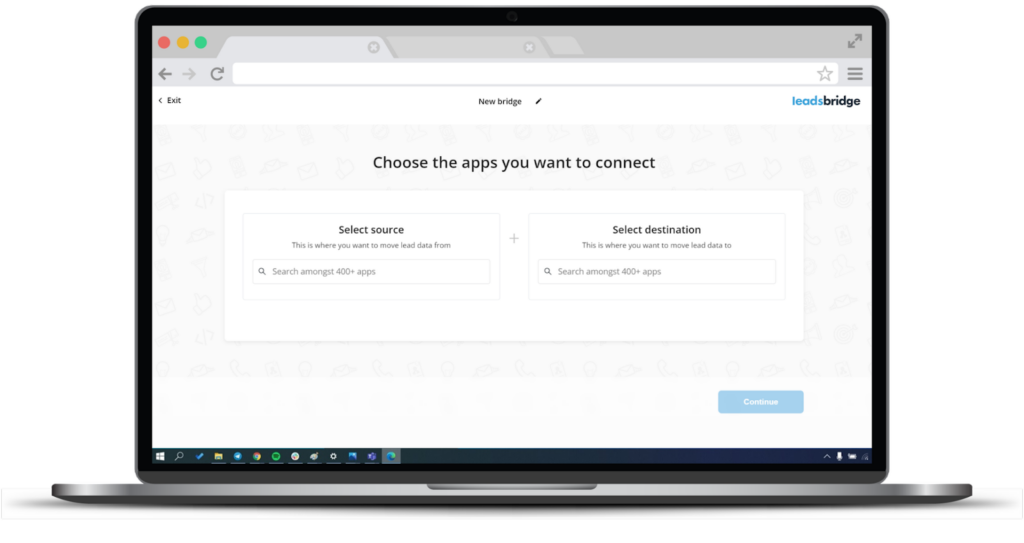
Step 1: Create new Bridge
On your LeadsBridge dashboard, click on the Create new Bridge button at the top left of the screen.
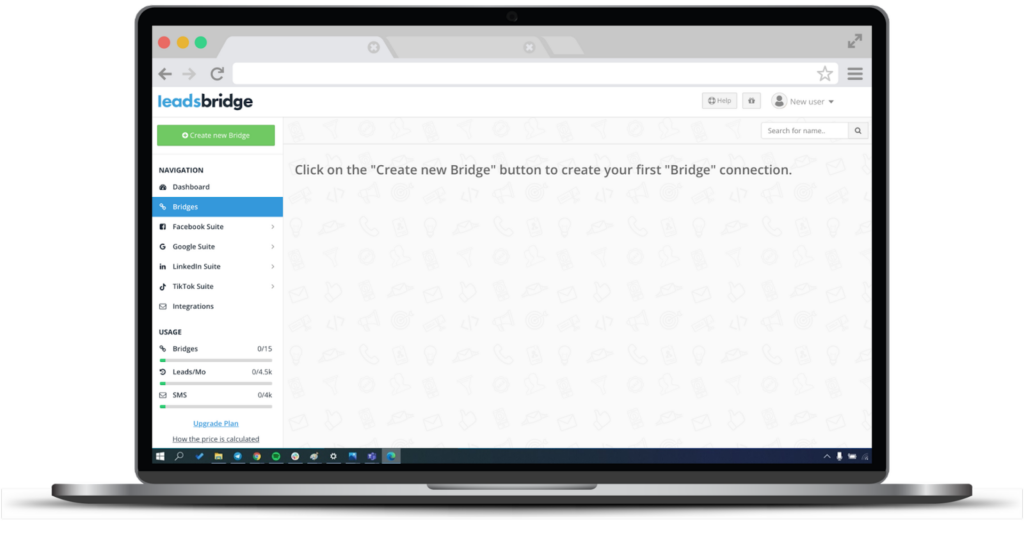
Then, select your source – which is your marketing software – and your destination – Facebook custom audiences. You can do this by typing the desired app in the search bar.
Then, click Continue.
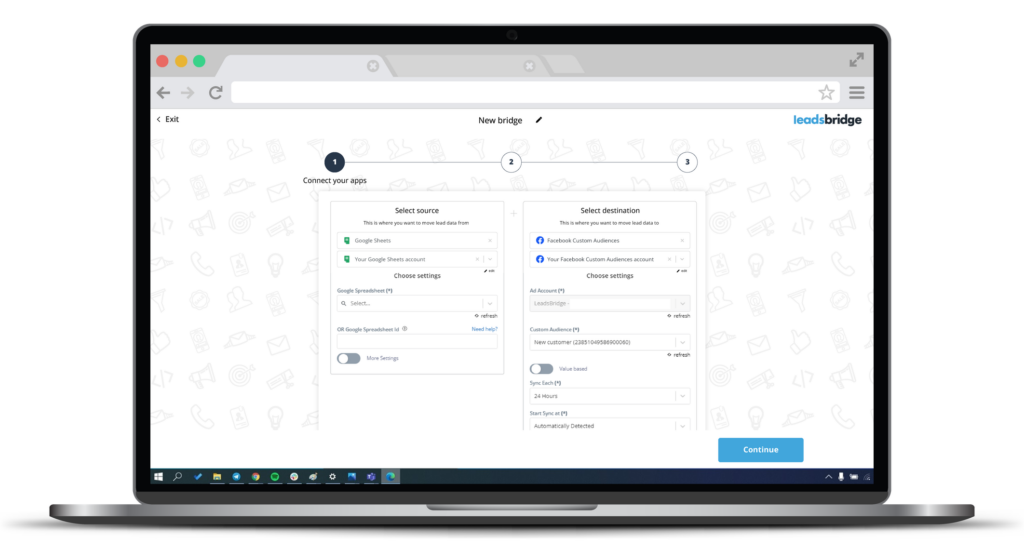
Step 2: Account authorization
Here, you’re required to connect your accounts. For example, Google Sheets as the Source and Facebook as the Destination. Each account needs to be authorized using an in-app login interface to allow LeadsBridge to have access to your platforms.
During authorization, you may choose to include the “value-based” extra row of data simply by clicking on a switch button, or decide how often you’d like your audiences to be updated with new data.
Once authorization is complete, click Continue.
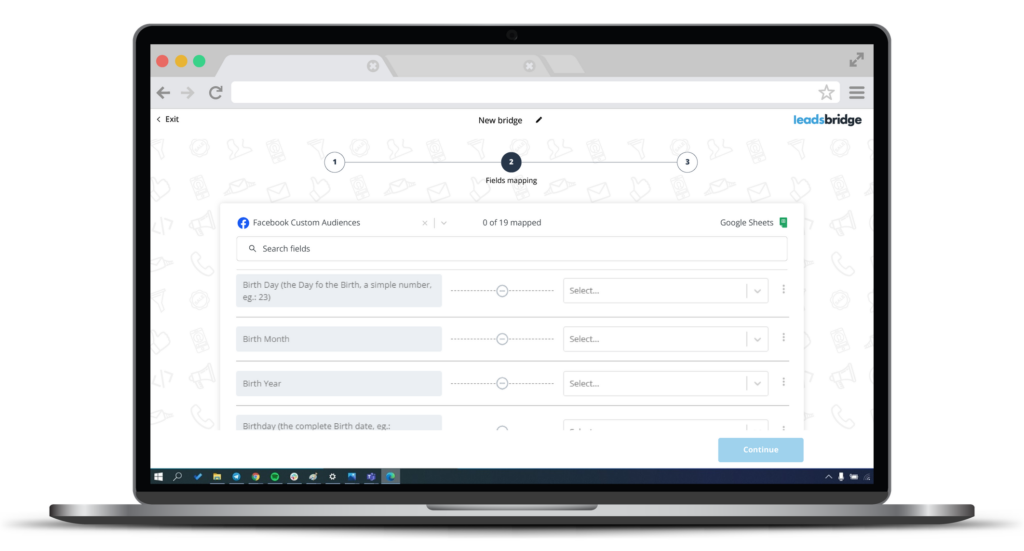
Step 3: Fields mapping
Start matching fields to guarantee a perfect data transfer. To do this, make sure that all your Source (Google Sheets) fields match with the ones required by Facebook custom audiences (Destination).
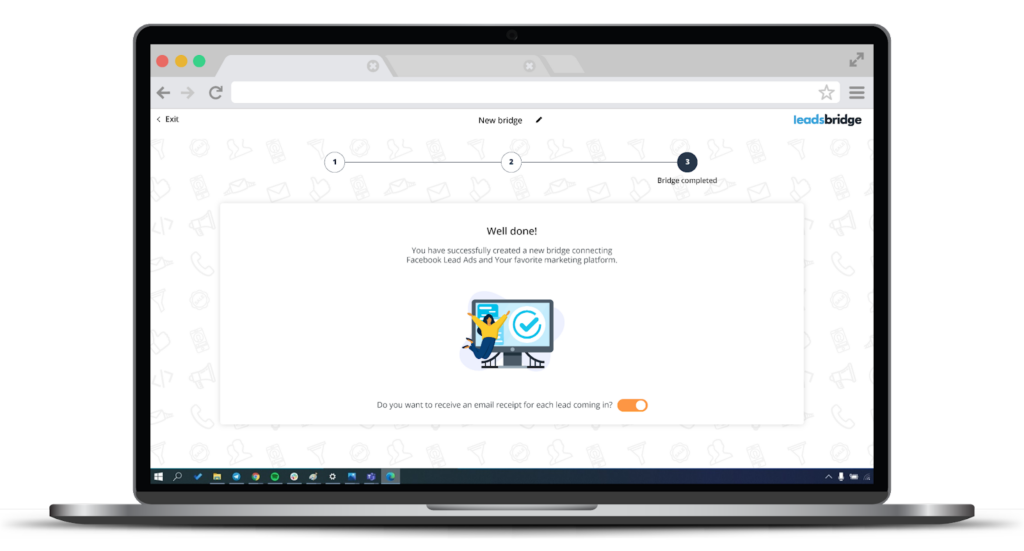
After matching the fields, you can also choose to test your bridge before completing the bridge creation experience. Once done, click Save & publish. Your bridge is successfully completed and will start syncing automatically.
And it’s not just Meta. You can use the same LeadsBridge setup to sync your CRM lists with Google and LinkedIn audiences too, so you can retarget or exclude people across all your ad platforms. Here are a few popular integrations to get you started:

With LeadsBridge Audience Targeting add-ons, you can choose audience sync options based on your audience size and campaign needs.
This solution counts the maximum size of your reached audience, in contrast to the previous model, which counted an audience each time a contact was added or removed.
This audience targeting add-on enables you to ascertain your required audience size, charged at a flat fee. The value of this system is that it gives you greater flexibility in the running of your campaigns, free from interruption.
To initiate this audience counter on your current custom audience plan, you can contact our sales team by booking a call today.
How to target an email list on Facebook
Leveraging your existing email list to create custom Facebook ad audiences allows you to precisely target leads within your database who are most likely to convert.
With Facebook custom audiences, you can upload or sync email addresses only when you have the right permission to use them for advertising. Meta will try to match the emails to people on Meta technologies, such as Facebook and Instagram.
There are a number of strategies that you can use to effectively create a Facebook audience from email lists. These include:
- Abandoned cart customers
Cart abandonment doesn’t always signal lost intent. Users might need a nudge to finish. Try a Facebook ad campaign aimed at this audience with incentives or discounts to seal the deal.
- Website visitors
A custom audience ad campaign targeting past website visitors can boost conversions by staying top of mind and nurturing the existing relationship.
Facebook custom audience best practices
Now that you know all the different types of custom audiences available, let’s explore some of the best practices to help you kickstart your retargeting campaigns.
1. Create your campaigns faster by cutting down on manual work
Close collaboration among several departments is required to develop a robust retargeting strategy. However, coordinating the work among departments already takes a lot of effort. This leaves little room for repetitive, manual work.
Since effective retargeting campaigns depend entirely upon constantly updated CSV files, they need to be synced with Meta Business Manager quite often. The best way to avoid manual upload is through marketing automation.
By bridging the CRM with the Meta Business account, the information is updated automatically in the custom audience on Facebook once a new subscriber enters a particular CRM segmentation or a specific stage in the buying cycle.
2. Keep your custom audiences up to date
Retargeting only works when your audiences are current. How often you need to update them depends on your business, but for fast-moving campaigns, weekly or biweekly updates are usually too slow.
Here’s why. Say a lead becomes a customer today. If your list hasn’t been updated, they’ll keep seeing ads meant for leads. That’s wasted budget, and it’s annoying for them.
Updating lists by hand doesn’t scale either, and it often creates back-and-forth between the CRM team and the ads team.
With automation, you choose how often your audiences update, so they always match your latest CRM data. You stop showing ads to people who already bought, and you spend your budget on people who are still deciding.
3. Reduce the possibility of data point mismatch
One often overlooked aspect of retargeting campaigns is the precise formatting and uploading of customer data required by Meta.
Manually creating a CSV file involves data gathering, proper column sorting, file extraction, and Facebook upload. However, some CRMs, like HubSpot, offer a native option for ready-to-upload CSV files.
Consistency in file format is crucial during sorting, because it leaves minimal room for error. To reduce mismatching, it’s best to access data directly from CRM value fields using an API script.
API scripts enhance matching precision, ensuring custom audiences remain clean for effective retargeting campaigns.
4. Keep your Ad Relevance Diagnostics in good shape
Meta replaced its old single Relevance Score with Ad Relevance Diagnostics. Instead of one number, you get three rankings:
- Quality ranking
- Engagement rate ranking
- Conversion rate ranking
Each one shows how your ad compares with other ads competing for the same audience.
One of the easiest ways to keep these rankings healthy is to stop showing ads to people who already bought. When you retarget website visitors, exclude your past buyers. You can use a purchase-event website audience, a customer list from your CRM, or both together to catch more of them.
That way, your ads only reach people who visited your site but haven’t converted yet. Customers who already bought won’t keep seeing ads they don’t need, and you won’t waste budget on them.
Ads that feel relevant to the people seeing them usually get better engagement and conversion rates. Over time, that can mean lower costs and more results for the same budget.
5. Keep your lookalike audiences relevant
Lookalike audiences help you find new people who are a lot like your best customers. But they don’t work as well as they used to. Privacy changes mean Meta has less data to build them with. These days, a broad audience with Advantage+ often does better. So before you go all in on a lookalike, run a quick test against a broad audience and see which one performs better.
If you do use a lookalike, start with a good list. Pick your best customers, not everyone who ever signed up, and keep that list fresh. If you can, add how much each customer spent. That way, Meta looks for people like your biggest buyers, not just any buyer.
Two quick things to keep in mind.
- First, with Advantage+ audience on, Meta treats your lookalike as a hint, not a hard rule. It may show your ads to other people too.
- Second, if your ad is in a special ad category, like housing, jobs, or financial products, you can’t use lookalikes at all.
6. Create precise audience segmentation
The more specific your segments, the more relevant your ads can be. A few good ones to start with:
- Recent website visitors (last 30 days): People who know your brand and might still be deciding.
- High-intent page visitors: People who visited your pricing, product, sign-up, or checkout pages.
- Engaged blog readers (last 30 days): Retarget them with more helpful content, not a hard sell.
- Repeat engagers: People who engaged with your Facebook or Instagram at least three times in the past 30 days.
- Past buyers (up to 730 days): Good for repeat purchases, upsells, or excluding from new customer ads.
- Active newsletter subscribers: Use your email list to stay in front of people who already open your emails.
7. Follow Meta’s latest Custom Audience rules: A final checklist
Before you create a custom audience, ask yourself:
- Am I in the right ad account and business portfolio?
- Have I accepted Meta’s Customer List Custom Audiences Terms? You need to do this before you upload or sync any list.
- Do I have permission to use this data for ads? Only use contacts who agreed to it.
- Are my identifiers clean? Email and phone number match best. Add others when you have them.
- Is my audience name neutral? Skip names like “diabetes patients” or “bad credit users.” Go with something like “Recent buyers — 180 days.”
- Does my ad fall under a Special Ad Category? That covers housing, jobs, financial products, politics, elections, and social issues. If it does, check Meta’s rules first.
- Am I excluding the right people? Leave out current customers, recent buyers, and employees. For lists you never want to target, use an exclusion-only audience.
- Is my list up to date? Refresh it often, or sync it automatically with LeadsBridge.
- Are the Meta Pixel and Conversions API both set up? Together, they give Meta better data when browser tracking is limited.
- Is the audience ready? Make sure it’s big enough, mapped correctly, and not flagged.
- Have I noted where this audience came from? Write down the source, what data it uses, and when you last updated it.
Are the Meta Pixel and Conversions API both set up? Together, they give Meta better data when browser tracking is limited. Not sure how good your data is? Here’s how to check your event match quality.
Custom audiences: FAQs
Here are some common questions about custom audiences:
1. What is a custom audience on Facebook?
It’s a group of people who already know your business, like customers, leads, website visitors, app users, or people who engaged with you on Facebook or Instagram. You build it from your own data or from engagement on Meta. Then you can show them ads, keep them out of a campaign, or use them as the source for a lookalike audience.
2. How do you use a custom audience in Facebook ads?
First, create the audience in the Audiences section of Ads Manager. Then, when you set up your ad set, add it in the Audience section. With Advantage+ audience, which is on by default for Sales, Leads, and App campaigns, Meta uses your custom audience as a suggestion, not a hard limit.
If you want ads to reach only that list, switch to original audience options. The most common ways to use custom audiences are retargeting warm leads, excluding current customers, and seeding lookalike audiences.
3. What is Facebook’s custom audiences privacy?
If you want to use Facebook custom audiences, you must follow the applicable terms. Two of the important policies are:
- Tell people clearly how you collect and use their data. Make sure you have permission to share it with Meta for ad targeting. Consent-based marketing best practices require brands to indicate where they collected the information.
- Make sure you’ve obtained permission to use and share people’s data.
Also check Meta’s Customer List Custom Audiences Terms, Meta Business Tools Terms, and the privacy laws that apply where your customers live, such as GDPR, UK GDPR, CCPA/CPRA, or other local laws.
4. Do Facebook custom audiences auto-update?
Some do, some don’t! Custom audiences are updated automatically by pulling data from your website based on the specified rules. For instance, if you set a rule to include visitors from the past 30 days, it will add them automatically.
You can manage this data manually, which is extremely inefficient. Alternatively, CRM or email data can be synced automatically via LeadsBridge’s Audience Targeting tool, saving time and ensuring seamless lead integration with reduced data errors.
5. What is the Facebook custom audiences minimum size?
For customer list uploads, Meta says lists should include at least 100 customers and at least one main identifier. For lookalike audiences, the source usually needs at least 100 people from the same country, but larger source lists often work better.
6. How do you change your audience on Facebook?
You can take the following steps to modify your Facebook audience:
- You can edit an ad set by going to your Meta Ads Manager and selecting the ad set you want to edit.
- Next, click on the “Edit” button.
- To find the “Audience” section, scroll down.
- You can now edit the targeting options for your audience, including age, gender, location, interests, behaviors, and more.
- To update your ad set with the new audience after making your changes, click the “Save” button.
Remember that altering your audience may have an impact on the effectiveness and reach of your advertisement. So carefully consider your targeting options and keep an eye on the results.
7. What is a Core Audience in Ads Manager?
Core audiences are older Meta targeting settings, which are based on things like location, age, interests, and behaviors. In 2026, Meta mostly pushes Advantage+ audience, where some targeting inputs work as suggestions instead of strict limits.
When integrated into all of Meta’s ad-buying tools, it enables advertisers to refine their audience.
So to answer your question about what a Core Audience is in Ads Manager, here’s a quick rundown of how it targets users based on four criteria:
- Location targeting by country, city, state, or ZIP code, and excluding specific areas.
- Demographic reach to target people based on relationship status, life events, workplace, job title, and education.
- Streamlined interest-based targeting for simplicity and precision.
- Behavior targeting for targeting based on purchases and device usage.
Keep in mind that Meta removed detailed targeting exclusions back in March 2025. You can’t exclude interests or behaviors anymore, but you can still exclude custom audiences.
8. How to remove a custom audience in Facebook?
Deleting a custom audience results in it being immediately removed from your account and any ad account you’ve shared it with. Active ad sets that use the deleted audience will be paused.
And while you can turn on a paused ad set, remember to review any changes first.
To delete your custom audience:
Step 1: Find Audiences in Ads Manager.
Step 2: Tick the box next to the audience you’d like to delete.
Step 3: Select Delete.
And voila!
How to delete a shared custom audience
Let’s review deleting a shared custom audience, whether you have shared it or it was shared with you:
- If you delete a custom audience that you’ve shared with another ad account, it will also be removed from the recipient’s account. They might get notified if they have active ad sets using that audience, since those ad sets will be paused.
- If you delete a custom audience that was shared with you by another ad account, it won’t affect the original owner’s account. You can follow the steps above to delete the audience.
Meta also deletes audiences on its own. If an audience hasn’t been used in an active ad set for over two years, it’s marked as expiring and deleted 90 days later, unless you use it again.
9. Can you combine custom audiences on Facebook?
Yes. You can add several custom audiences to one ad set. For example, you could target your past customers and your recent website visitors at the same time.
Here’s how:
- Create a new ad set in Ads Manager.
- In the Audience section, add your custom audiences. You can pick as many as you want.
- Make sure each audience shows as “Ready.” If it doesn’t, it won’t work in your ad set.
But if Advantage+ audience is on, Meta treats the custom audiences you add as suggestions. It might show your ads to people outside them. If you need your ads to reach only those lists, switch to original audience options.
You can also exclude audiences. This is useful when you’re going after new leads and don’t want to keep showing ads to current customers. Exclusions are always respected, even with Advantage+ audience on.
To exclude an audience:
- In your ad set, go to Audience and open “Show more controls.”
- Add the lists you want to leave out under “Exclude these custom audiences.”
Then set up the rest of your ad as usual and publish. Your ad will go live after Meta reviews it.
10. How to share a custom audience on Facebook
Shared audiences let others access the audiences you’ve created for your ads. You can share custom audience lists between ad accounts if both accounts are tied to a business portfolio and have an audience-sharing connection.
Before you begin, you must meet these requirements:
- Both ad accounts should be connected through business portfolios, and a person with full control may need to approve the sharing relationship.
- A person with full control of the business portfolio must start the sharing process.
- Accept Facebook’s terms of service if sharing for the first time.
Now, the actual steps to share an audience:
Step 1: Go to Audiences in Ads Manager.
Step 2: Tick the boxes next to the audiences you want to share.
Step 3: Click the Share button.
Step 4: Enter the ad account numbers you want to share the audiences with.
Step 5: Click the Share button again.
For this sharing process to be completed, the recipient’s business portfolio needs to accept the partnership request.
Once accepted, you can share additional audiences with those ad accounts. Also, remember that shared audiences can’t be used to create lookalike audiences.
11. How to accept custom audience terms on Facebook
Log in with the user who has the right ad account or business portfolio permissions. Then accept Meta’s Customer List Custom Audiences Terms when prompted. Before signing, the user should confirm the ad account’s status and who they’re signing for:

Accepting custom audience terms on Facebook for a business
If you’re handling custom audiences for a business, you also need to accept the terms on behalf of that business using this link:
https://www.facebook.com/ads/manage/customaudiences/tos.php
Then, follow the instructions on this page to accept the terms for the entire business.
Accepting terms for each Ad Account
Meta asks each person to accept the Custom Audience terms once for each business they work in. The good news: you only need to do it from one ad account. After that, you can use customer list audiences in every ad account that business owns.
To accept, use this link and swap in your ad account ID:
https://business.facebook.com/ads/manage/customaudiences/tos/?act={AD_ACCOUNT_ID}
If you work with more than one business, repeat this for each one.
Reconnecting your account (if needed)
If you’re using third-party integrations (like LeadsBridge), refresh your access token after accepting the terms. To do this, disconnect and then reconnect your Facebook account within the platform to update your access and apply the changes.
12. How to exclude a custom audience in Meta Ads Manager
You can add multiple exclusions and still target the people you want. If you use lookalikes, exclude the source list too to prevent overlap.
Here’s how to exclude a custom audience on Facebook in a simple three-step approach:
- Open Meta Ads Manager and edit your Ad Set.
- In Audience, click Exclude and select Custom audiences.
- Then pick the list you don’t want to see your ads (e.g., past purchasers, employees, recent site visitors).
Remember to apply exclusions at the Ad Set so all ads inherit them. Also, make sure you refresh customer lists regularly to keep exclusions accurate.
For lists you never want to target, like people who opted out, employees, or people you’re legally not allowed to advertise to, create an exclusion-only custom audience. It works just like a customer list, but it can only be used to exclude people. That means nobody on your team can accidentally target it.
13. Can I create a custom audience using Facebook user IDs?
Yes, as long as you use identifiers Meta supports. Those include email, phone number, mobile advertiser ID, app user ID, and certain app- or page-scoped IDs where allowed.
Only use IDs for people who already have a real relationship with your business, like your customers or app users. Never use scraped profile IDs. You also need to follow Meta’s Platform Terms, Developer Policies, and the Custom Audience Terms of Service.
- Watch out for sensitive data
Since September 2025, Meta blocks custom audiences, lookalikes, and custom conversions that suggest health or financial information. So keep your audience names, event names, and segment labels neutral. Don’t mention health conditions, income, credit scores, or debt.
If you advertise housing, jobs, financial products, social issues, elections, or politics, Meta also limits your targeting options. Check the rules for special ad categories before you use custom audiences.
- What happens if your audience gets flagged
A flagged audience can’t be used in new campaigns, and it stops adding new people. Ads that are already running keep going, but they may start performing worse. If you use the API, flagged audiences show up with status code 471.
To fix it, remove any data or labels that hint at health or financial information, or create a new audience that follows the rules. Ads that are already running can keep going, but Meta recommends switching to a different audience so delivery doesn’t take a hit.
If you think Meta made a mistake, you can request a review in Ads Manager.
Final thoughts
Facebook custom audiences are a perfect tool for all businesses. Custom audiences work even better alongside cold campaigns, letting you blend prospecting and retargeting while keeping your ad spend more efficient.
Implementing custom audiences can boost your leads and sales by targeting individuals who are likely to convert, driving traffic to both your online and offline stores through retargeting activities. Additionally, having an app for your business can help increase installs.
At LeadsBridge, we can help sync custom audiences with your CRM, email tool, spreadsheet, or customer database.
With LeadsBridge integrations, you can easily integrate Facebook’s custom audiences with the rest of your marketing stack. Sign up now or request a demo, to test out our tool for yourself.