TL;DR
- Facebook Custom Audiences target people already familiar with your business.
- You can build audiences from website visitors, CRM contacts, app users, and engagement.
- Meta Pixel and CRM integrations help track users and automate updates.
- Retargeting warm audiences can lower ad costs and improve conversions.
- LeadsBridge helps automate syncing between your tools and Facebook audiences.
- Keep audiences updated, exclude existing customers, and follow privacy rules.
One of Meta’s most attractive ad features is its targeting tools, such as custom audiences.
Facebook custom audiences help advertisers reach people who already know their business, such as customers, leads, website visitors, app users, and people who engaged with their content.
To actually be able to use these advantages, however, you’ll need to connect your CRM, email tool, website, app, or offline data source to Meta. You can do this through custom audiences integrations through tools like LeadsBridge.
This connection allows you to automatically create the best audiences using your CRM segments, email marketing contacts, or customer lists.
The data you collect can also be used for retargeting or to exclude audiences at every stage of the funnel.
- TL;DR
- What are Facebook custom audiences?
- Benefits of using Facebook custom audiences
- Types of Facebook custom audiences
- How to automate your custom audiences with LeadsBridge
- How to automate audience segmentation through LeadsBridge
- LeadsBridge Audience Add-ons
- How to target an email list on Facebook
- Facebook custom audience best practices
- Custom audiences: FAQs
- Final thoughts
In this article, we’ll talk about everything you need to know about Facebook custom audiences and unique ways to boost your campaign’s profitability including automated integrations you can set up in a few clicks.


What are Facebook custom audiences?
Custom Audiences are a Meta ad tool that lets you reach people who have already interacted with your business.
Your custom audiences are compiled from individuals who have displayed interest in your business. This includes people in your CRM, website visitors, app users, email subscribers, customers, leads, and offline buyers.
What’s more, you can fine-tune your audience by adding or excluding individuals based on specific actions they’ve taken. For example, you can exclude recent app subscribers to ensure your ad budget isn’t wasted on the wrong audience.
But that’s not all – with custom audiences, you can even craft a lookalike audience to help you reach new people who are similar to your best customers. This approach maximizes your campaign’s return on investment (ROI).
Benefits of using Facebook custom audiences
Facebook custom audiences can boost ad campaigns in several ways. Here are four key advantages, supported by case studies to show how they work and their impact.
Generate more qualified leads at a lower cost
Facebook custom audiences is a useful tool for generating high-quality leads at a lower cost. How? By reconnecting with those who’ve previously shown interest in your business but have yet to make a purchase.
Wittchen used custom audiences to retarget people who had already visited its website, showing them relevant Facebook and Instagram ads.

They wanted to reach warmer, already-interested shoppers while letting Meta optimize toward people most likely to purchase.
As a result, the brand improved campaign efficiency and drove stronger results, including a 40% lift in purchases and more search and direct traffic.
Drive quality traffic to your website
Facebook custom audiences can help increase your website traffic. Alongside custom audiences, you can use Meta Advantage+ tools.
This feature helps Meta find better delivery opportunities, but results depend on your campaign setup, budget, data quality, and audience rules.
Drive in-store visits
With Facebook custom audiences, you can retarget customers who have bought from your offline store or engaged with your services.
Increase mobile app installations
If you have an app for your business, you can use custom audiences to increase your app installs by targeting the right audience with your ad.

Types of Facebook custom audiences
The main custom audience sources are website, customer list, app activity, offline activity, and engagement.
However, the exact options you see may depend on your ad account, assets, region, and campaign setup.

1. Custom audiences based on website activity (pixel)
Website custom audiences are based on what people do on your site.
For example, someone might visit a product page, add something to their cart, and leave without buying. If your Meta Pixel is set up, Meta can track that action and let you retarget that person with a relevant ad.
Before you create this type of audience, you need to set up the Meta Pixel. For better tracking, use the Meta Conversions API too, when possible.
What is the Meta Pixel?
The Meta Pixel is a small piece of code you add to your website. It helps Meta understand what people do on your site, such as:
- Viewing a page
- Adding something to the cart
- Starting checkout
- Making a purchase
This data helps you create custom audiences for retargeting ads.
So, when someone looks at a product on your website and later sees an ad for that product on Facebook or Instagram, that is usually website retargeting in action.
How to create a website custom audience
To create a custom audience from website visitors:
- Log in to Meta Ads Manager with access to the right ad account and business portfolio.

- Open the left-side menu and click Audiences.
- Click Create a custom audience.

- Choose Website as your audience source.

- Click Next.
- Choose which website visitors you want to include.

You can create audiences based on:
| Option | What it means |
| All website visitors | People who visited your site during the selected time period |
| Specific web pages | People who visited URLs that include or exclude certain words |
| Time spent | Your top 5%, 10%, or 25% of visitors by time on site |
| Pixel events | People who completed actions like purchases, add-to-cart events, or form submissions |

After that, name your audience and add a short description so you can recognize it later. Then click Create Audience.
2. Custom audiences based on CRM segments
Customer list audiences are built from people who already gave your business their information.
This can include:
- Customers
- Leads
- Newsletter subscribers
- Past buyers
- Trial users
- Sales contacts
Usually, this data comes from your CRM, email tool, or autoresponder. You can upload it to Meta using a CSV or TXT file.
Make sure your file is formatted correctly, and only use data you have permission to use for advertising.
How to create a customer list audience
To create a custom audience from your CRM data:
- Download the customer or lead list from your CRM, email platform, or autoresponder.
- Go to the custom audiences page.
- Choose Customer list.

- Decide how you want to add your data.
You can usually add the list in one of two ways:
| Method | How it works |
| Import from a supported tool | Connect a platform like Mailchimp, if available in your account |
| Upload a CSV or TXT file | Upload your customer list manually |
When uploading a file, use strong identifiers like:
- Phone number
- First name
- Last name
- City
- State
- ZIP or postal code
- Country
- Date of birth
- Gender
- Mobile advertiser ID
- App user ID
Follow Meta’s formatting guidelines and use Meta’s template to avoid mistakes.

After uploading your list:
- Name your audience.
- Add a short description.
- Match each column to the right identifier.

- Confirm that Meta mapped the data correctly.

- Click Import & Create.
Meta will then try to match your customer data to people across Meta technologies. The better your data quality, the better your match rate is likely to be.
A faster way to sync CRM audiences
Uploading customer lists by hand can get messy fast. It takes time, and it is easy to make mistakes.
A better option is to use an automated data bridge, like LeadsBridge.
With LeadsBridge, you can connect your CRM, email platform, or customer database directly to Facebook Custom Audiences. This keeps your audiences updated automatically.
We have a whole host of integrations available for Facebook custom audiences. Here are the most popular data bridges according to our users:


3. App activity custom audiences
App activity audiences are based on what people do inside your app.
You can use them to reach people who installed your app, opened it, made a purchase, completed a level, added payment details, or took another in-app action.
To send app activity to Meta, you may need to use:
- Meta SDK
- Facebook SDK (for Android)
- App Events
- Conversions API for App Events
Before creating this audience, you need to register your app, set up the SDK, and log app events.
Best campaign objectives for app activity audiences
Choose your campaign objective based on what you want people to do:
| Goal | Recommended objective |
| Get more installs | App promotion |
| Drive app events | App promotion |
| Increase purchases | Sales |
| Drive visits to an app or website | Traffic |
How to create an app activity audience
To create an app activity custom audience:
- Go to the custom audiences page.
- Select App activity.
- Click Next.

- Choose the app you want to use.
- Name your audience and add a description.
- Choose the in-app event or action you want to use.

- Create your audience.
You can build audiences from actions like:
- Opened the app
- Reached a certain level
- Added payment info
- Made a purchase
- Spent a certain amount of money
This is useful when you want to bring users back into your app or move them toward a specific action.
4. Offline activity custom audiences
Offline activity audiences are based on actions people take outside your website or app.
This can include:
- In-store purchases
- Phone sales
- CRM-recorded deals
- Offline appointments
- Sales team updates
These audiences use offline event data from your Offline Event Sets. In many cases, you can keep people in these audiences for up to 180 days, but this can vary based on your setup and Meta’s current options.
Always check the retention window available in your account when creating the audience.
When to use offline activity audiences
Offline activity audiences are useful when online tracking does not tell the full story.
For example, you can use them to:
- Exclude recent in-store buyers from seeing new customer ads
- Retarget people who bought offline
- Build lookalike audiences from offline customers
- Reach people similar to your best offline buyers
How to create an offline activity audience
To create an offline activity custom audience:
- Go to the custom audiences page.
- Select Offline activity.

- Click Next.
- Choose the Offline Event Set you want to use.
- Add a name and description.

- Create your audience.
If you do not see any Offline Event Sets, you need to create one first in Meta Events Manager.
5. Engagement custom audiences
Engagement custom audiences are based on how people interact with your brand across Meta.
This includes actions people take on:
- Lead forms
- Videos
- Events
- Shops
- Instant Experiences
- Facebook Pages
- On-Facebook listings
These audiences are different from website audiences. Website audiences track behavior on your site. Engagement audiences track behavior inside Meta’s own apps and tools.

They are usually easier to set up because Meta already has the engagement data.
Common engagement audience types
| Engagement type | What it tracks | Best used for |
| Video | People who watched your videos | Retargeting warm viewers |
| Lead form | People who opened or submitted a lead form | Following up with leads or form abandoners |
| Instant Experience | People who opened or clicked inside an Instant Experience | Retargeting high-intent ad engagers |
| Shopping | People who viewed or interacted with products | Retargeting product shoppers |
| Instagram account | People who interacted with your Instagram profile or content | Reaching Instagram engagers |
| Events | People who interacted with your Facebook events | Promoting events or follow-up offers |
| Facebook Page | People who engaged with your Page | Retargeting Page visitors and followers |
| On-Facebook listings | People who viewed or messaged about catalog products | Retargeting product interest |
Video engagement audiences
For video audiences, choose how engaged someone needs to be before they enter the audience.

For example, you may target people who watched:
- A few seconds of your video
- A certain percentage of your video
- A specific video or group of videos
This is useful because someone who watched a video is already familiar with your brand.
Lead form engagement audiences
Lead form audiences are based on how people interacted with your Meta lead forms.

With lead ads, you can target:
- Anyone who opened the form
- People who opened but did not submit it
- People who opened and submitted it

This helps retarget people who showed interest but did not finish the form.
Instant Experience audiences
Instant Experience audiences are based on people who opened or clicked inside one of your ads with Instant Experiences.

You can include:
- People who opened the Instant Experience
- People who clicked a link inside it
This works well for retargeting people who spent time with a more interactive ad.
Shopping engagement audiences
Shopping audiences are based on how people interact with your products on Facebook or Instagram.

You first choose the platform and page you want to use. Then you choose the shopping event that should add someone to the audience.
This is useful for retargeting people who viewed or interacted with products but did not buy.
Instagram account audiences
Instagram engagement audiences are based on actions people take with your Instagram account.

You can create audiences from people who:
- Visited your profile
- Engaged with posts or ads
- Sent a message
- Saved content
This is a good option when Instagram is a major part of your customer journey.
Event audiences
Event audiences are based on people who interacted with your Facebook events.
You can build audiences from people who showed interest, responded, or engaged with an event.

This is useful for event promotion, reminders, and post-event follow-up.
Facebook Page audiences
Facebook Page audiences are based on how people interact with your Page.

You can include people who:
- Visited your Page
- Engaged with posts or ads
- Clicked a call-to-action button
- Sent a message
- Saved your Page or posts
This is a simple way to retarget people who already know your business.
On-Facebook listings audiences
On-Facebook listings audiences are based on product listing activity.

You can target people who:
- Viewed products in your catalog
- Messaged about products in your catalog
This is useful for reaching people who showed product interest but did not take the next step.
How to automate your custom audiences with LeadsBridge
Did you know you can sync data from CRMs and marketing tools such as Salesforce®, Bitrix24, Act-On, HubSpot, Mailchimp, Google Sheets, Zoho CRM, and others? All you need is a Facebook custom audience integration using the LeadsBridge Audience Targeting tool.
By connecting your CRM or auto-responder to Facebook custom audiences through LeadsBridge, your lead list updates automatically.
This sends your customer list data to Meta so it can match and update the audience. This also means much less manual uploads and data mismatches.
Take a look at all integrations available for Facebook custom audiences, and some of our most popular data bridges below:


How to automate audience segmentation through LeadsBridge
Creating automatic Facebook LTV custom audiences saves time and effort since it prevents advertisers from manually uploading custom audiences to the platform.
The Facebook custom audience integration also helps keep your Lifetime Value Audience lists on Facebook updated whenever someone makes a purchase.
Let’s see how to connect your marketing software with a Facebook custom audience integration through LeadsBridge:
Before you start
First of all, log in to your LeadsBridge account or – if you don’t have one yet – create one for free.
Step 1: Create new Bridge
On your LeadsBridge dashboard, click on the Create new Bridge button at the top left of the screen.
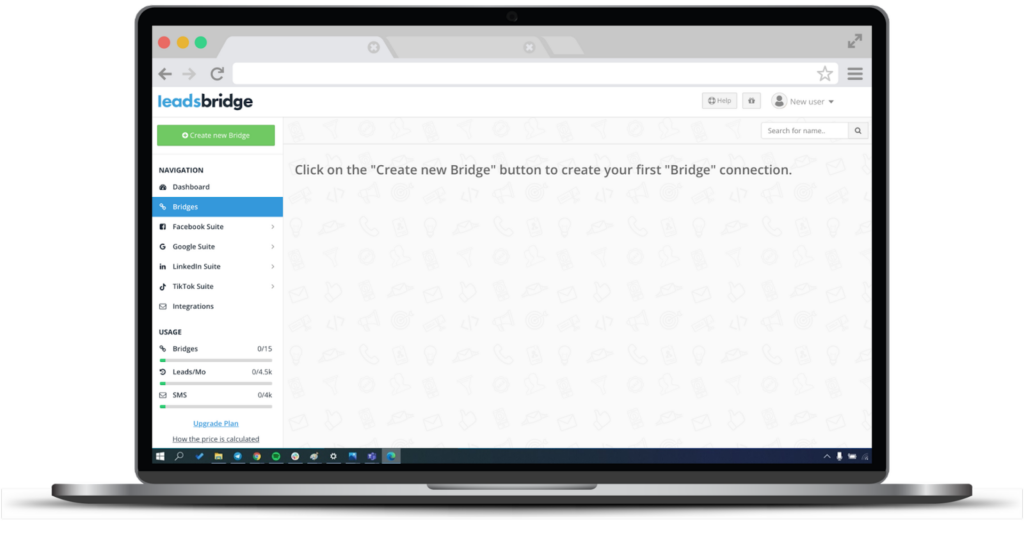
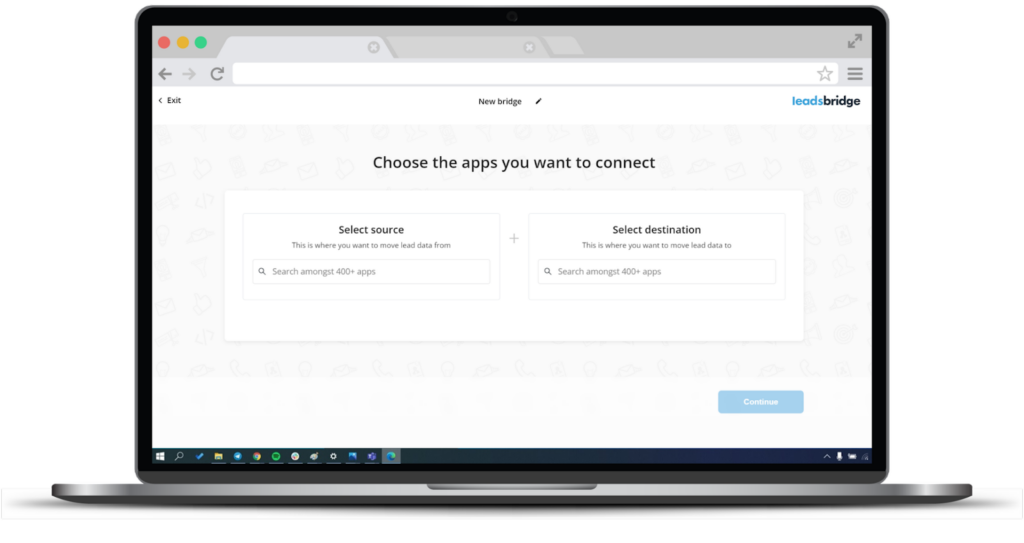
Then, select your source – which is your marketing software – and your destination – Facebook custom audiences. You can do this by typing the desired app in the search bar.
Then, click Continue.
Step 2: Account authorization
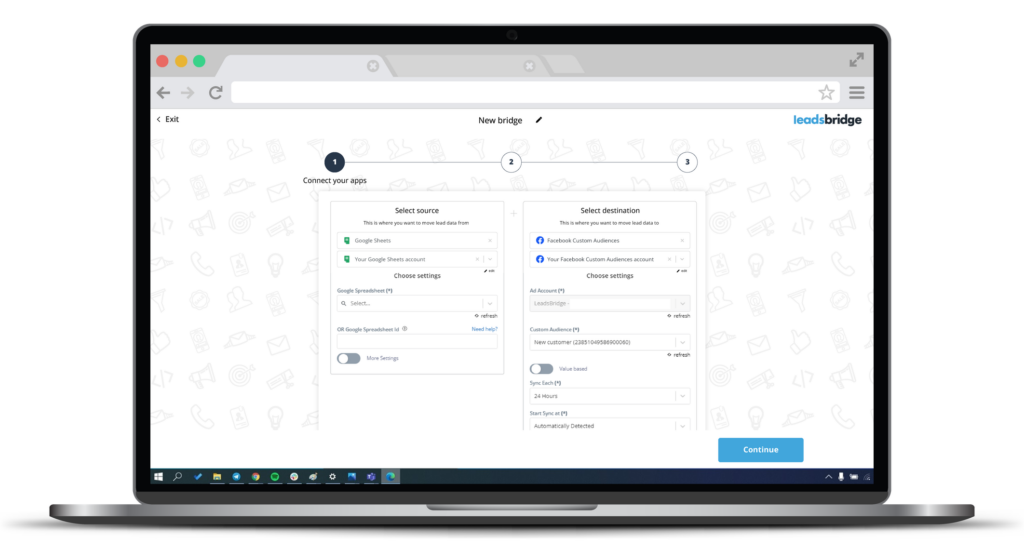
Here, you’re required to connect your accounts. For example, Google Sheets as the Source and Facebook as the Destination. Each account needs to be authorized using an in-app login interface to allow LeadsBridge to have access to your platforms.
During authorization, you may choose to include the “value-based” extra row of data simply by clicking on a switch button, or decide how often you’d like your audiences to be updated with new data.
Once authorization is complete, click Continue.
Step 3: Fields mapping
Start matching fields to guarantee a perfect data transfer. To do this, make sure that all your Source (Google Sheets) fields match with the ones required by Facebook custom audiences (Destination).
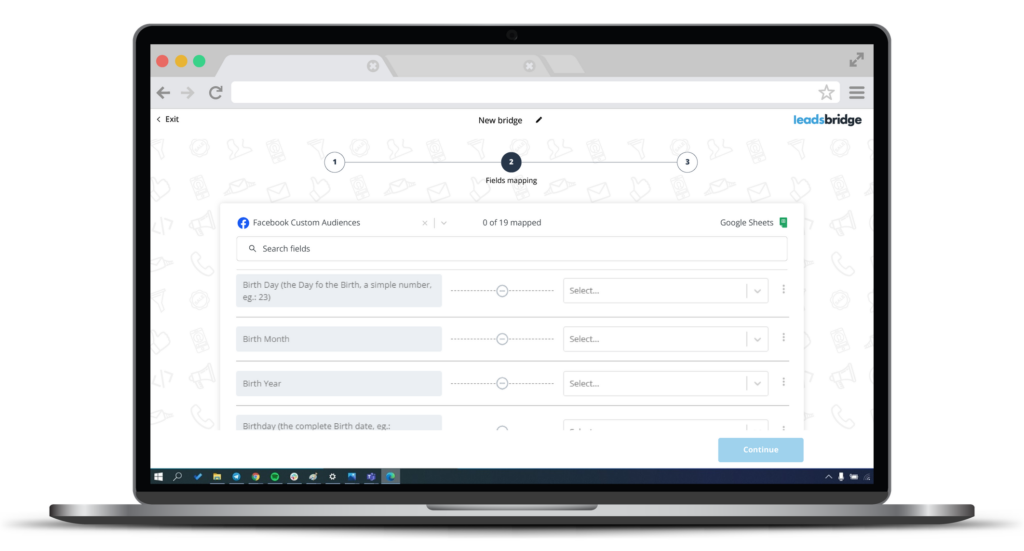
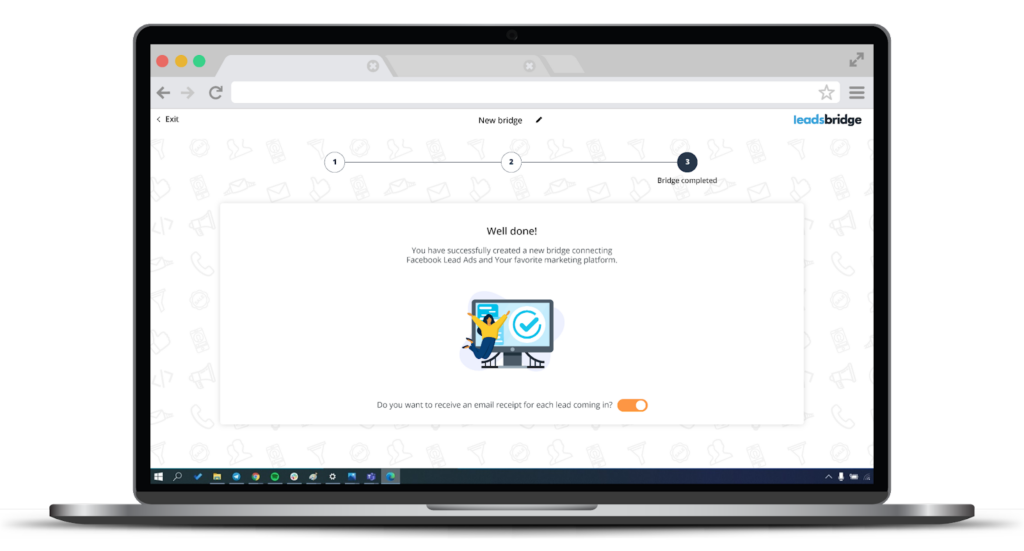
After matching the fields, you can also choose to test your bridge before completing the bridge creation experience. Once done, click Save & publish. Your bridge is successfully completed and will start running data automatically and in real-time.
LeadsBridge Audience Add-ons
LeadsBridge audience targeting allows you to target new leads and remarket to existing ones within your CRM software and your custom audiences on ad platforms such as Meta, Google, and LinkedIn.
By syncing your CRM segments, such as email contacts and customer lists, with advertising platforms, you can automatically create precise custom audiences, while retargeting or excluding leads at every stage of the funnel.

With LeadsBridge Audience Targeting add-ons, you can choose audience sync options based on your audience size and campaign needs.
This solution counts the maximum size of your reached audience, in contrast to the previous model, which counted an audience each time a contact was added or removed.
This audience targeting add-on enables you to ascertain your required audience size, charged at a flat fee. The value of this system is that it gives you greater flexibility in the running of your campaigns, free from interruption.
To initiate this audience counter on your current custom audience plan, you can contact our sales team by booking a call today.
How to target an email list on Facebook
Leveraging your existing email list to create custom Facebook ad audiences allows you to precisely target leads within your database who are most likely to convert.
With Facebook custom audiences, you can upload or sync email addresses only when you have the right permission to use them for advertising. Meta will try to match the emails to people on Meta technologies, such as Facebook and Instagram.
There are a number of strategies that you can use to effectively create a Facebook audience from email lists. These include:
- Abandoned cart customers
Cart abandonment doesn’t always signal lost intent. Users might need a nudge to finish. Try a Facebook ad campaign aimed at this audience with incentives or discounts to seal the deal.
- Website visitors
A custom audience ad campaign targeting past website visitors can boost conversions by staying top of mind and nurturing the existing relationship.
Facebook custom audience best practices
Each segment is addressed with a campaign that triggers the right buying impulses at the right time.
However, many marketing departments still operate by uploading CSV or TXT files in Meta Ads Manager to create custom audiences. Timing and accuracy are crucial to taking advantage of the available data and running effective retargeting campaigns.
The information must flow freely from the CRM database to the Meta Business Suite. That can be a problem, especially for large companies with strong hierarchical environments and several managers whose responsibilities often overlap.
Here are five ways large companies can benefit from automating custom audiences despite their structural challenges.
Now that you know all the different types of custom audiences available, let’s explore some of the best practices to help you kickstart your retargeting campaigns.
1. Create your campaigns faster by avoiding manual work
Close collaboration among several departments is required to develop a robust retargeting strategy. However, coordinating the work among departments already takes a lot of effort. This leaves little room for repetitive, manual work.
Since effective retargeting campaigns depend entirely upon constantly updated CSV files, they need to be synced with Meta Business Manager quite often. The best way to avoid manual upload is through marketing automation.
By bridging the CRM with the Meta Business account, the information is updated automatically in the custom audience on Facebook once a new subscriber enters a particular CRM segmentation or a specific stage in the buying cycle.
2. Create instant retargeting campaigns with updated custom audiences
Constant data updates are crucial to boost sales through a dynamic retargeting strategy. This depends on the brand and what they offer. Giants like Adidas and Nike revise their lead, customer, and segment databases rapidly.
For fast-moving campaigns, weekly or biweekly list updates may be too slow. More frequent syncing can help reduce wasted spend and avoid showing ads to the wrong people. For example, some leads may become customers, yet your outdated database keeps sending them ads as if they’re still leads.
Manual updates are also impractical, causing friction between CRM Managers and Advertising Planners.
Using automation, you can update custom audiences every 6 hours with the latest data. This ensures a high-quality shopping experience and increased profit margins.
3. Reduce the possibility of data point mismatch
One often overlooked aspect of retargeting campaigns is the precise formatting and uploading of customer data required by Meta.
Manually creating a CSV file involves data gathering, proper column sorting, file extraction, and Facebook upload. However, some CRMs, like HubSpot, offer a native option for ready-to-upload CSV files.
Consistency in file format is crucial during sorting, because it leaves minimal room for error. To reduce mismatching, it’s best to access data directly from CRM value fields using an API script.
API scripts enhance matching precision, ensuring custom audiences remain clean for effective retargeting campaigns.
4. Keep your Ad Relevance Diagnostics in good shape
Meta upgraded the single Relevance Score years ago and replaced it with Ad Relevance Diagnostics. This is no longer one score. It includes Quality ranking, Engagement rate ranking, and Conversion rate ranking.
When setting up retargeting campaigns for website visitors, you can instruct Facebook to exclude email contacts of those who’ve already made a purchase and are in the CRM. You can achieve this by placing a code snippet (pixel) on the transaction confirmation page.
This feature allows you to show ads to people who visited the website but are not registered in the CRM. Additionally, it prevents flooding customers who have already converted with further ads by maintaining high-ranking Ad Relevance Diagnostics.
This is an indicator of ad performance. Usually, a higher overall rating is associated with lower overall costs and higher reach per dollar spent.
In other words, having strong relevance allows advertisers to enjoy lower costs and more effective ad distribution.
5. Keep your lookalike audiences relevant
Lookalike audiences is one of Facebook’s targeting options. They are users that share similar traits and interests to customers or leads who have already had some interaction with a business.
By replacing the information about the usual identifiers such as name, email, and phone number, with the ideal client data in terms of spending over time, Facebook can reach a more qualitative audience.
6. Creating precise audience segmentation
- Past website visitors (Within 30 Days): People familiar with your brand.
- Specific High-Intent Landing Page Visitors: Target users on sign-up, checkout, product, or pricing pages.
- Blog readers, high engagement (Within 30 Days): Retarget blog visitors with valuable content.
- Newsletter subscribers, active (In Q2 2026): Re-engage active and inactive subscribers through Facebook custom audiences.
7. Follow Meta’s latest Custom Audience rules: A final checklist
Before you create a custom audience in 2026, check these items:
- Use the right ad account and business portfolio: Make sure you are working inside the correct Meta ad account and business portfolio.
- Accept Meta’s Custom Audience terms: If you use customer lists, accept Meta’s Customer List Custom Audiences Terms before uploading or syncing data.
- Use only permission-based data: Only upload or sync data from people who gave your business permission to use their information for advertising.
- Use clean customer identifiers: Include strong identifiers such as email and phone number. Add other approved identifiers when available to help Meta match your records more accurately.
- Avoid sensitive audience names: Do not use audience names, segment labels, events, or custom conversions that reveal health, financial, or personal traits.
For example, avoid names like:
- “diabetes patients”
- “high-income leads”
- “bad credit users”
- Use neutral names instead, such as:
- “CRM segment — Q2 2026”
- “Recent buyers — 180 days”
- “Newsletter subscribers — active”
- Check Special Ad Category rules: If your ads are about housing, jobs, credit, financial products, politics, elections, or social issues, review Meta’s Special Ad Category rules before building the audience.
- Use exclusions carefully: Exclude people who should not see the ad, such as current customers, recent buyers, employees, or users who already converted.
- Keep your lists updated: Refresh customer lists often or use an integration like LeadsBridge to sync CRM and email data automatically. This helps avoid targeting people who already bought, unsubscribed, or moved to another funnel stage.
- Connect the Meta Pixel and Conversions API when possible: Use the Meta Pixel for website browser events and Conversions API for server-side, CRM, app, or offline events. This gives Meta better data when browser tracking is limited.
- Review audience health before launch: Check that the audience is available, large enough, correctly mapped, and not flagged with issues before you use it in a campaign.
- Document your data source: Keep a simple internal note that explains where each audience came from, what data it uses, and when it was last updated. This makes privacy reviews and troubleshooting easier.
Custom audiences: FAQs
Here are some common questions about custom audiences:
1. What is Facebook’s custom audiences privacy?
If you want to use Facebook custom audiences, you must follow the applicable terms. Two of the important policies are:
- Tell people clearly how you collect and use their data. Make sure you have permission to share it with Meta for ad targeting. Consent-based marketing best practices require brands to indicate where they collected the information.
- Make sure you’ve obtained permission to use and share people’s data.
Also check Meta’s Customer List Custom Audiences Terms, Meta Business Tools Terms, and the privacy laws that apply where your customers live, such as GDPR, UK GDPR, CCPA/CPRA, or other local laws.
2. Do Facebook custom audiences auto-update?
Yes! Custom audiences are updated automatically by pulling data from your website based on the specified rules. For instance, if you set a rule to include visitors from the past 30 days, it will add them automatically.
You can manage this data manually, which is extremely inefficient. Alternatively, CRM or email data can be synced automatically via LeadsBridge’s Audience Targeting tool, saving time and ensuring seamless lead integration with reduced data errors.
3. What is the Facebook custom audiences minimum size?
For customer list uploads, Meta says lists should include at least 100 customers and at least one main identifier. For lookalike audiences, the source usually needs at least 100 people from the same country, but larger source lists often work better.
4. How do you change your audience on Facebook?
You can take the following steps to modify your Facebook audience:
- You can edit an ad set by going to your Meta Ads Manager and selecting the ad set you want to edit.
- Next, click on the “Edit” button.
- To find the “Audience” section, scroll down.
- You can now edit the targeting options for your audience, including age, gender, location, interests, behaviors, and more.
- To update your ad set with the new audience after making your changes, click the “Save” button.
Remember that altering your audience may have an impact on the effectiveness and reach of your advertisement. So carefully consider your targeting options and keep an eye on the results.
5. What is a Core Audience in Ads Manager?
Core audiences are older Meta targeting settings, which are based on things like location, age, interests, and behaviors. In 2026, Meta mostly pushes Advantage+ audience, where some targeting inputs work as suggestions instead of strict limits.
When integrated into all of Meta’s ad-buying tools, it enables advertisers to refine their audience.
So to answer your question about what a Core Audience is in Ads Manager, here’s a quick rundown of how it targets users based on four criteria:
- Precise location targeting by country, city, state, ZIP code, and exclusion of specific areas, or by excluding specific areas.
- Demographic reach to target people based on relationship status, life events, workplace, job title, and education.
- Streamlined interest-based targeting for simplicity and precision.
- Behavior targeting for targeting based on purchases and device usage.
6. How to remove a custom audience in Facebook?
Deleting a custom audience results in it being immediately removed from your account and any ad account you’ve shared it with. Active ad sets created by either the audience owner or the shared audience recipient, including the deleted audience, will be paused.
And while you can turn on a paused ad set, remember to review any changes first.
To delete your custom audience:
Step 1: Find Audiences in Ads Manager.
Step 2: Tick the box next to the audience you’d like to delete.
Step 3: Select Delete.
And voila!
How to delete a shared custom audience
Let’s review deleting a shared custom audience, whether you have shared it or it was shared with you:
- If you delete a custom audience that you’ve shared with another ad account, it will also be removed from the recipient’s account. They might get notified if they have active ad sets using that audience, since those ad sets will be paused.
- If you delete a custom audience that was shared with you by another ad account, it won’t affect the original owner’s account. You can follow the steps above to delete the audience.
7. Can you combine custom audiences on Facebook?
Yes, you can absolutely combine custom audiences when setting up your Facebook (Meta) ads. The process is actually pretty straightforward. Here’s how to do it:
- Start by creating a new ad set in Ads Manager.
- In the Audience section, go to the Advantage+ audience area and click on Audience suggestion (this part’s optional, but it can help).
- Under Custom Audiences, select all the audiences you want to include. You can pick multiple.
Let’s say you’ve got a list of past customers and another of recent website visitors. If so, you can target both at once. When you add more than one custom audience, Meta can use those audiences in the ad set. In the Advantage+ audience, some audience choices may act as suggestions unless they are set as controls.
When setting this up, just make sure each audience member shows “Ready” before using it, or it won’t work properly in your ad set.
You can also continue to optimize by using exclusion targeting. This is great if you are trying to reach new leads, so they don’t overlap with your current customers. To exclude certain audiences:
- In the ad set, go to Audience. Open Show more controls. Add the Custom Audiences you want to exclude under custom audience exclusion.
- Click Show more options, and add any custom audiences you want to leave out under Exclude these custom audiences.
- Set up the rest of your ad as usual, including budget, placements, creative, etc.
Once everything looks good, publish the ad set. Your campaign will go live after Meta reviews it.
8. How to share a custom audience on Facebook
Shared audiences let others access the audiences you’ve created for your ads. You can share custom audience lists between ad accounts if both accounts are tied to a business portfolio and have an audience-sharing connection.
Before you begin, you must meet these requirements:
- Both ad accounts should be connected through business portfolios, and a person with full control may need to approve the sharing relationship.
- A person with full control of the business portfolio must start the sharing process.
- Accept Facebook’s terms of service if sharing for the first time.
Now, the actual steps to share an audience:
Step 1: Go to Audiences in Ads Manager.
Step 2: Tick the boxes next to the audiences you want to share.
Step 3: Click the Share button.
Step 4: Enter the ad account numbers you want to share the audiences with.
Step 5: Click the Share button again.
For this sharing process to be completed, the recipient’s business portfolio needs to accept the partnership request.
Once accepted, you can share additional audiences with those ad accounts. Also, remember that shared audiences can’t be used to create lookalike audiences.
9. How to accept custom audience terms on Facebook
Log in with the user who has the right ad account or business portfolio permissions. Then accept Meta’s Customer List Custom Audiences Terms when prompted. Before signing, the user should confirm the ad account’s status and who they’re signing for:

Accepting custom audience terms on Facebook for a business
If you’re handling custom audiences for a business, you also need to accept the terms on behalf of that business using this link:
https://www.facebook.com/ads/manage/customaudiences/tos.php
Then, follow the instructions on this page to accept the terms for the entire business.
Accepting terms for each Ad Account
Each ad account associated with your business also needs to have the terms accepted individually. Use this link for each ad account:
https://business.facebook.com/ads/manage/customaudiences/tos.php?business_id={BUSINESS_ID}
Replace {ACCOUNT_ID} with the specific ID of each ad account (in the format act_xxxx). This way, you can make sure that each ad account is authorized to use custom audiences.
Use {BUSINESS_ID} or change the URL to use {ACCOUNT_ID} if that is intended
Reconnecting your account (if needed)
If you’re using third-party integrations (like LeadsBridge), refresh your access token after accepting the terms. To do this, disconnect and then reconnect your Facebook account within the platform to update your access and apply the changes.
10. How to exclude a custom audience in Meta Ads Manager
You can add multiple exclusions and still target the people you want. If you use lookalikes, exclude the source list too to prevent overlap.
Here’s how to exclude a custom audience on Facebook in a simple three-step approach:
- Open Meta Ads Manager and edit your Ad Set.
- In Audience, click Exclude and select Custom audiences.
- Then pick the list you don’t want to see your ads (e.g., past purchasers, employees, recent site visitors).
Remember to apply exclusions at the Ad Set so all ads inherit them. Also, make sure you refresh customer lists regularly to keep exclusions accurate.
11. Can I create a custom audience using Facebook user IDs?
Yes, you can use supported Meta identifiers, such as email, phone, mobile advertiser ID, app user ID, and certain app- or page-scoped IDs when allowed.
However, do not use scraped Facebook profile IDs or data from people who do not have a permitted relationship with your business.
But you must only use IDs for people you already have a real relationship with (for example, customers or users of your app), and you must follow Meta’s Platform Terms, Developer Policies, and the Custom Audience Terms of Service.
You also have to respect the newer rules about sensitive data.
Meta has restricted Custom Audiences, Lookalike Audiences, and custom conversions that suggest sensitive health or financial information. Avoid audience names, event names, and segment labels that mention conditions, income, credit scores, debt, or other sensitive traits.
If you advertise housing, jobs, credit, financial products, social issues, elections, or politics, Meta may limit targeting and audience options. Check the rules for special ad categories before using custom audiences.
If your audience is flagged, it may get an error code (like 471), your ad set may show “with issues”, and that audience cannot be used to run ads.
To fix a flagged audience, review the audience, remove any data or labels that hint at health or financial information, or create a new audience that follows the rules.
If that has happened to you and you think Meta made a mistake, you can request a review inside Ads Manager.
Final thoughts
Facebook custom audiences are a perfect tool for all businesses. Custom audiences work even better alongside cold campaigns, letting you blend prospecting and retargeting while keeping your ad spend more efficient.
Implementing custom audiences can boost your leads and sales by targeting individuals who are likely to convert, driving traffic to both your online and offline stores through retargeting activities. Additionally, having an app for your business can help increase installs.
At LeadsBridge, we can help sync custom audiences with your CRM, email tool, spreadsheet, or customer database.
With LeadsBridge integrations, you can easily integrate Facebook’s custom audiences with the rest of your marketing stack. Sign up now or request a demo, to test out our tool for yourself.