
TL;DR
- Downloading CSVs from Ads Manager is slow, error-prone and easy to forget.
- A Facebook ads integration does three things: 1) lead sync (lead ads to CRM), 2) audience sync (CRM lists to custom audiences), and 3) conversion sync (CRM stages back to Meta through the Conversions API).
- You can connect through Meta’s native CRM integrations, a third-party connector like LeadsBridge, or a custom API and webhook build.
- With LeadsBridge, setup happens in just a few clicks, with you having to pick your source and destination app, connect accounts, map fields, test, and publish.
Speed decides who converts audiences into leads and customers. However, doing that manually is nearly impossible.
There are also other problems with a slow process. Every copy-paste is a chance to lose data or add duplicates. If you have been running ads on Instagram or Facebook, you know that Meta only keeps your lead data for 90 days. If you happen to forget to download it, your lead data is lost for good.
In addition to these issues, Meta only knows someone filled out a form. Without your CRM data, it keeps finding form-fillers. And that does not include buyers.
- TL;DR
- What is a Facebook ads integration?
- 3 ways to integrate your CRM with Facebook ads
- How to integrate Facebook lead ads with your CRM (step-by-step)
- Facebook lead ads and Facebook custom audiences integration
- Facebook Conversions API and Conversion Leads integration
- Why use LeadsBridge for your Facebook ads integrations
- 7 common Facebook ads integration mistakes (and how to avoid them)
- FAQs
- Final thoughts
This guide covers how an integration fixes all four setbacks in practice, along with the most popular integration that helps you do that.


What is a Facebook ads integration?
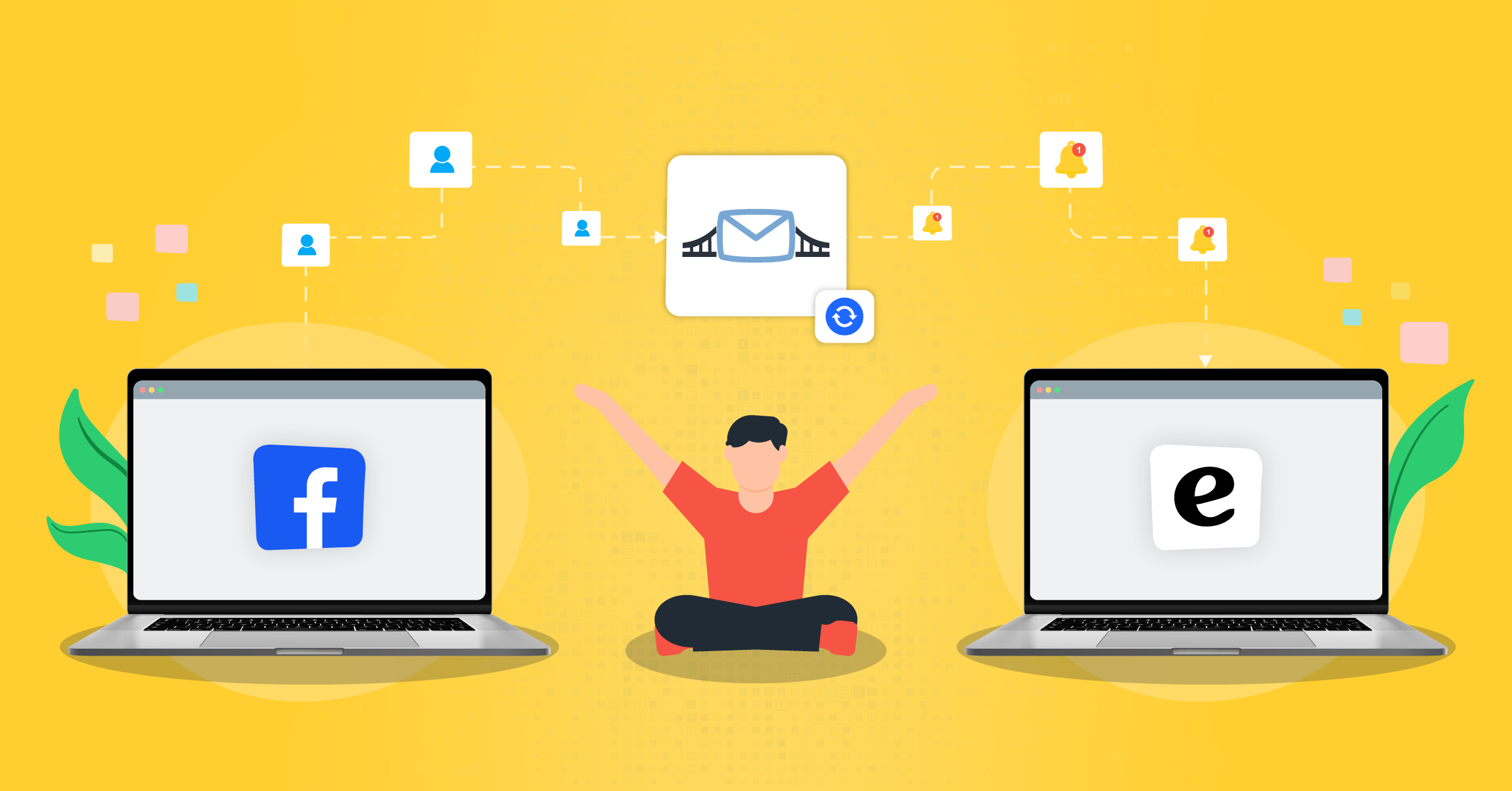
It’s basically an automatic connection that you can build between your Meta ad account and tools like your CRM or email platform. With the bridge, your lead data moves automatically, usually in real time.
There are three types:
- Lead sync: New leads go straight from your lead ads into your CRM, so your team can follow up right away.
- Audience sync: Your CRM lists flow into Facebook custom audiences and stay updated, ready for retargeting, exclusions, and lookalikes.
- Conversion sync: When a lead qualifies or buys, your CRM tells Meta through the Conversions API. Meta then looks for more leads like that. This is what the Conversion Leads goal is actually about and why it became so popular among marketers.
| Type | Direction | What you get | LeadsBridge integration |
| Lead sync | Lead ads to CRM | Faster follow-up, no CSVs | Facebook lead ads |
| Audience sync | CRM to custom audiences | Audiences that stay current | Facebook custom audiences |
| Conversion sync | CRM back to Meta | Better-quality leads | Facebook Conversions API, Facebook Conversion Leads |
All three combined allow you to create a loop. And when you have access to leads as they come in, you can work them when they are most likely to convert via nurturing campaigns and follow-ups, and the results you get help Meta find better ones. Isn’t that a fascinating upward spiral?
3 ways to integrate your CRM with Facebook ads
The right one depends on your CRM, your budget, and how much control you need to have over the processes.
1. Meta’s native CRM integrations
This is done by connecting a supported CRM straight from Meta Business Suite. Check if yours is on Meta’s list, or read Meta’s overview of CRM integrations.
- Pros: Free and quick.
- Cons: Only for listed CRMs, and it only covers lead sync. Mapping is basic.
Here’s everything you need to know about Facebook business integrations.

2. Third-party connectors
Tools like LeadsBridge link Meta to your other apps with no code needed, allowing you to get your data in real time.
- Pros: Hundreds of apps, and all three sync types in one place. It’s an official Meta partner.
- Cons: It’s a paid subscription.

3. Custom API and webhook setup
Your developers build it with Meta’s lead webhooks and the Conversions API.
- Pros: Full control, works with anything.
- Cons: Slow to build and needs resource-heavy upkeep. Meta estimates 3 to 4 weeks for a custom build, versus under a day through a partner. And Meta’s APIs change. It retired the Offline Conversions API in May 2025, for example.
A glance at ways to integrate your CRM with Facebook ads
| Native integration | Third-party connector | Custom API/webhooks | |
| Setup time | Minutes | Minutes | Weeks |
| Cost | Free | Subscription | Developer time |
| CRM coverage | Listed CRMs only | Hundreds of apps | Anything with an API |
| Lead sync | Yes | Yes | Yes |
| Audience sync | Separate setup | Yes | If you build it |
| Conversion sync | Separate setup | Yes | If you build it |
| Maintenance | Meta and your CRM | The connector | Your team |
Here’s your quick pick guide:
- Go native if your CRM is listed, and you just need leads.
- But you need to use a connector if you want all three flows without developers.
- And build your own only if you have the engineering time.
How to integrate Facebook lead ads with your CRM (step-by-step)
Here’s the setup in LeadsBridge. It works the same for HubSpot, Salesforce, Zoho, Pipedrive, and the rest.


Before you start: Log in to LeadsBridge or create a free account. Use a Facebook profile that has access to your ad account.

Step 1: Choose your source and destination
- Click Create new Bridge.
- Pick Facebook Lead Ads as the source and your CRM as the destination.
- Name your bridge with the pencil icon.

Step 2: Connect your accounts
- Log in to Facebook to authorize the connection, then click Continue.

- Under Choose settings, pick your ad account and click Continue.
- Connect your CRM account.

Step 3: Map your fields
Match each form field to the right CRM field. You can also add fixed values, like a lead source tag, or reformat dates and phone numbers.
Just remember to check that the formats match. A phone field that rejects country codes can drop numbers without warning.

Step 4: Test and go live
- Click Test connection.
- Add a test name and email, then click Run test.

- Check that the lead shows up in your CRM.
- Click Save & publish.

That’s it. New leads now land in your CRM in real time.
Want to do more with them?
See Facebook lead automation and Facebook lead management.
And if you are new to lead ads? Start with our guide to Facebook lead generation ads.
Facebook lead ads and Facebook custom audiences integration
Getting leads into your CRM is the first step. Step two is showing them the right ads next.
Some leads go quiet. Some buy, then keep seeing ads for what they already bought. Custom audiences fix both, as long as they’re up to date.
With LeadsBridge, you run two bridges together:
- Lead ads to CRM: New leads land in your CRM in real time.


- CRM to custom audiences: Your CRM segments sync to custom audiences. When a lead changes stage, they change audience.


Together, they automate the main steps of your funnel:
| Funnel step | What happens | Bridge |
| Capture | Someone fills in your lead form | Facebook lead ads |
| Follow-up | The lead lands in your CRM and sales picks it up | Lead ads to CRM |
| Nurture | Open leads see retargeting ads | CRM to custom audiences |
| Exclude | Customers stop seeing acquisition ads | CRM to custom audiences |
| Expand | Your best customers seed lookalikes | CRM to custom audiences |
New to custom audiences? Read our step-by-step guide to Facebook custom audiences.
Facebook Conversions API and Conversion Leads integration
This step tells Meta which leads actually became customers.
The standard Leads goal finds people who are likely to fill in a form. That often means lots of cheap leads who never pick up the phone.
The Conversion Leads goal sends your CRM events like “qualified” or “won” back to Meta through the Conversions API. Meta learns what a good lead looks like and finds more of them.
Want to picture that in numbers? Here are some examples and their results:
- 21% lower cost per quality lead on average, in a Meta A/B test with 1,031 advertisers in 2025.
- TECOBI, which runs lead ads for car dealerships, got an 8% lower cost per quality lead and a 68% higher conversion rate.
- Univo, which runs enrollment campaigns in India, roughly tripled its lead-to-enrollment rate and halved its cost per enrollment, based on metrics shared with Meta.
Also, since April 2026, new campaigns need a Conversions API integration to use the qualified leads goal.
How LeadsBridge helps
LeadsBridge sends your CRM events to Meta for you:
- Facebook Conversions API: sends leads and deal stage changes from your CRM to Meta.


- Facebook Conversion Leads: syncs lead status so Meta can optimize for the stage you choose.


Why use LeadsBridge for your Facebook ads integrations
Of course, you could piece this together yourself. Meta’s native integration for leads, a CSV routine for audiences, and a developer for the Conversions API. But that’s three separate setups to build, check, and fix when something doesn’t go through.
LeadsBridge handles the whole loop in one place using:
- Real-time sync for leads and audiences. New leads reach your CRM the moment they come in, so sales can call while they’re still warm. Contacts also move in and out of your custom audiences as their CRM status changes. No exports, no uploads.
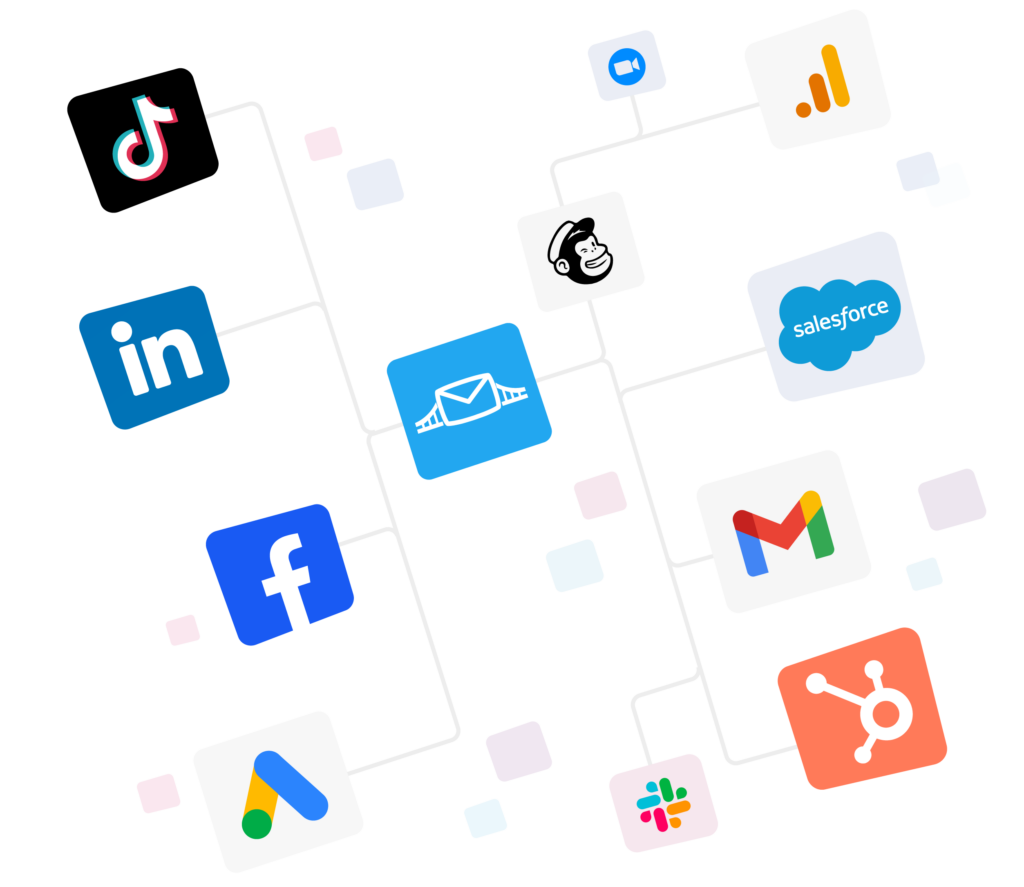
- 380+ integrations, so your CRM is probably covered. HubSpot, Salesforce, Zoho CRM, Pipedrive, ActiveCampaign, Mailchimp, Google Sheets and plenty more. Using something less common? Webhooks let you send data almost anywhere.
- Official Meta Business Partner. LeadsBridge is listed in Meta’s partner directory and connects through Meta’s own APIs. No workarounds, no scraping.
- Conversions API and Conversion Leads support, with no code. Send CRM stages like “qualified” or “won” back to Meta without a developer. That’s what lets Meta optimize for leads that actually close, not just form fills.
- Easy to set up and run. Every bridge works the same way: pick a source and destination, map your fields, test and publish. G2 has given LeadsBridge badges for Easiest Setup and High Performer in the mid-market category.
- Free to start, so you can test before you commit. Build your first bridge, send a test lead and watch it land in your CRM before you pay anything. Syncing high volumes? You can book a demo with the team.

7 common Facebook ads integration mistakes (and how to avoid them)
Setting up an integration is the easy part. But how do you get it right?
Here are the mistakes we see most often.
1. Only syncing leads
Lead sync gets leads into your CRM fast. But on its own, Meta still has no idea which of those leads were any good. Add conversion sync so Meta can learn from your results, and audience sync so your retargeting stays current.
2. Skipping the Meta Lead ID
If your CRM doesn’t store the lead ID, Meta can’t match a sale back to the ad that brought it in. Map it to a CRM field from day one. It’s much harder to fix later.
3. Not reviewing your field mapping
Custom questions dumped into a notes field. Phone numbers missing their country code. Dates in the wrong format. Your sales team ends up cleaning data instead of calling leads. Map every field properly and use formatting functions where you need them.
4. Not testing before going live
A bridge can look right and still fail on a single field. Always send a test lead and check it in your CRM before you publish. Then check again once your first real leads come in.
5. Optimizing for a stage that comes too late
If you ask Meta to optimize for “closed-won” and your sales cycle is three months long, it won’t get the signal in time. Meta needs the event within 28 days of the lead. Pick an earlier stage, like “qualified” or “call booked”.
6. Forgetting to exclude customers
If your audiences don’t update, people who already bought keep seeing your acquisition ads. That’s budget down the drain. Sync your customer list to a custom audience and exclude it from your prospecting campaigns.
7. Letting leads sit in the CRM
An integration gets leads into your CRM in seconds, but that only helps if someone acts on them. Set up instant alerts or tasks for your sales team, plus an automatic welcome email, so every lead hears from you right away. Remember, reaching a lead within the hour makes you nearly 7x more likely to qualify them. For more on this, see our guide to Facebook lead management.
FAQs
Use Meta’s native integration, a connector like LeadsBridge, or a custom API setup. A full setup syncs leads, audiences and conversions.
In LeadsBridge, create a bridge from Facebook Lead Ads to your CRM. Connect both accounts, map your fields, then test and publish.
The full walkthrough is in this article on how to connect Facebook lead ads to your CRM.
Yes, for supported CRMs. Check Meta’s list. For other CRMs, or for audience and conversion sync, use a connector.
Yes. Connect lead ads to your CRM, then your CRM to custom audiences. Contacts move between audiences as their status changes.
Meta’s native integrations are free for supported CRMs, and LeadsBridge has a free plan. Manual CSV downloads are free too, but they’re slow and Meta only keeps lead data for 90 days.
Final thoughts
Connecting Facebook lead ads to your CRM is one of the quickest wins in paid social. Leads get followed up faster, your data stays clean, and Meta finally learns which leads are worth paying for.
But here’s one last tip before you switch anything on. Sit with your sales team and agree on what a “qualified” lead actually means. That definition becomes the signal Meta optimizes for, so it has to match what sales really wants.
Then stop judging campaigns on cost per lead alone and track cost per qualified lead instead. That’s the number that tells you whether your ads bring in business.
Ready to close that loop?